Categories
Android

How To Add Whatsapp Stickers in Andriod
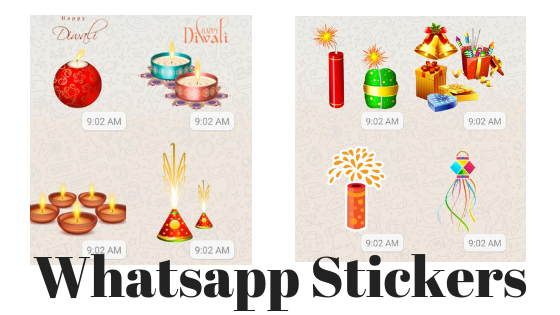
Whatsapp Stickers in Andriod

Whatsapp Diwali stickersWhatsapp Stickers are the latest trend in the Social Media Messaging Applicaion.  Its extremely easy and fun to send stickers to your contacts, esp in the ocassions of special festivals and Holidays.  Here is the step by step procedure to send Whatsapp Stickers to you friends and loved ones…

Step by Step procedure to download and use Stickers in Whatsapp Andriod:

  1. Open any individual chat or group where you intend to send the Whatsapp Stickers.
  2. Next to the text input field, tap EmojiWhatsapp emoji icon  then choose StickersWhatsapp Sticker icon .
  3. To add Whatsapp Sticker packs, tap AddWhatsapp Add icon .
  4. In the Stickers popup that appears, tap on DownloadWhatsapp Download icon  next to the Whatsapp Sticker pack you want to download. If prompted, tap DOWNLOAD • {file size} (where file size is displayed).
    • A green tick markWhatsapp Green Tick icon  will appear once the download is complete.
  5. Tap BackWhatsapp Back icon .
  6. Find & tap the sticker you want to send.
    • Note: Once you tap the sticker, it’ll send automatically.
Additional options to use while sending Whatsapp Stickers:
  • Tap on RecentsWhatsapp Recents icon  to view your recently used stickers and resend them.
  • Tap on FavoritesWhatsapp Favorites icon  to view your favorite stickers.
    • To favorite a sticker, lightly tap the sticker in your individual chat or group > ADD TO FAVORITES. Alternatively tap the EmojiWhatsapp emoji icon  > StickersWhatsapp Sticker icon . Once you find the sticker you want to favorite, tap and hold the sticker, then tap ADD.
    • To unfavorite a sticker, lightly tap the sticker in your individual chat or group > REMOVE FROM FAVORITES. Alternatively, tap EmojiWhatsapp emoji icon  > StickersWhatsapp Sticker icon  > FavoritesWhatsapp Favorites icon . Once you find the sticker you want to unfavorite, tap and hold the sticker, then tap REMOVE.
  • If you tap the heart boxWhatsapp Heart Box icon, it’ll show a set of sticker category icons, where stickers are categorized based on the emoji displayed on the icons.
    • Example: Tapping the heart boxWhatsapp Heart Box icon  will bring up any stickers containing hearts.
  • If you want more sticker options, tap AddWhatsapp Add icon . Scroll to the bottom of the ALL STICKERS tab and tap GET MORE STICKERS. This will take you to Google Play Store, where you can download sticker apps.
  • To view the sticker packs you’ve downloaded, tap Add Whatsapp Add iconMY STICKERS tab. If you want to delete a specific sticker pack, tap Delete Whatsapp Delete iconDELETE. To reorder your sticker packs, tap and drag ReorderWhatsapp Reorder icon  next to a sticker pack.
  • When sticker packs need to be updated, tap AddWhatsapp Add icon  when a green dot appears. In the ALL STICKERStab, tap UPDATE next to the sticker pack that needs to be updated. If prompted, tap UPDATE • {file size}.
    • A green check mark Whatsapp Green Tick icon will appear once the update is complete.

Source: https://faq.whatsapp.com/en/android/26000227/?category=5245251

Categories
Laptop OsX Solutions

Open Apps From Unidentified Developers in Mac OS Sierra

Here is How to open applications that can’t be opened as they are from an ‘unidentified developer’ in Mac OS Sierra

How to Open Applications From Unidentified Developers in Mac OS Sierra

Opening a Specific App:

If you would like to allow just one specific application to run, use the following steps:

  1. Hold down the Control key and click the application icon.
  2. A contextual menu should appear – here Choose ‘Open’.
  3. A popup will appear asking you to confirm this action – Click the Open button.

Once you open the App is opened its stored as an exception in the settings and you can open it in future directly by double clicking it.

Allowing all Apps to Open(Works with some versions of Sierra):

If you would like to allow all applications from unidentified developers to run, use the following steps:

  1. Click on the “Apple” menu on the top left of your screen
  2. Select “System Preferences” option from the menu
  3. Choose ‘Security & Privacy’ from the System Preferences menu.
  4. Select ‘General’ from the tabs at the top of the Security & Privacy page.
  5. Click the ‘Lock icon’ at the bottom left of the window.
  6. Enter your administrative username and password and click Unlock
  7. Select ‘Anywhere’ from list of places to allow downloaded applications from. If this option does not show up in the window then you will have use the first method with each app.
  8. A popup window will appear asking you to confirm your selection. Click the Allow From Anywhere button.
Categories
Linux MySql Open Source Solutions

How to Rename Column in Mysql

To Rename a Column in Mysql we need to use the ALTER query with CHANGE COLUMN statement. The standard version of this query is:

ALTER [ONLINE | OFFLINE] [IGNORE] TABLE tbl_name
CHANGE [COLUMN] old_col_name new_col_name column_definition
[FIRST|AFTER col_name]


For Example:

ALTER TABLE City CHANGE CityId cityId varchar(25) NOT NULL;

Note: You will need to mention every constraint of the original column as defaults are assumed otherwise.

Categories
Laptop OsX

How To Take A ScreenShot on Mac

You can capture a Screenshot of your entire screen or just a selected portion of it. The screenshot is automatically saved to your desktop.

How to take a screenshot of your entire screen

  1. Press Shift+Command (⌘)+3.
  2. The screenshot will be saved as a .png file on your desktop

How to take a screenshot of a selected portion of your screen

how to take screenshot in mac

  1. Press Shift+Command (⌘)+4. The pointer changes to a crosshair.
  2. Move the crosshair to where you want to start the screenshot, then click and drag to select an area.
    Note: While dragging the Crosshair, you can hold Shift, Option, or Space bar to change the way the selection moves
  3. When you have selected the area that you want, release your mouse or trackpad button. To cancel, press the Esc (Escape) key before you release the button.
  4. The screenshot will be saved as a .png file on your desktop
Categories
Android Device Hardware Nexus 5 Open Source Solutions

How To Disable Keyboard Touch Vibration in Android 6 Marsh Mallow (Nexus 5x & 6p)

Google Keyboard is the default keyboard in the Android 6(Marsh Mallow). By default, its configured to enable vibration on key press. If you are someone who dislikes this feature and wants to disable it, here is a simple way of disabling it:
{adinserter 3}

  • Go to Home -> Settings -> Language & input
  • Locate “Google Keyboard” and press it to open its options.
  • Select Preferences
  • Disable the “Vibrate on keypress” option and you are good