Categories
Android

How To Add Whatsapp Stickers in Andriod
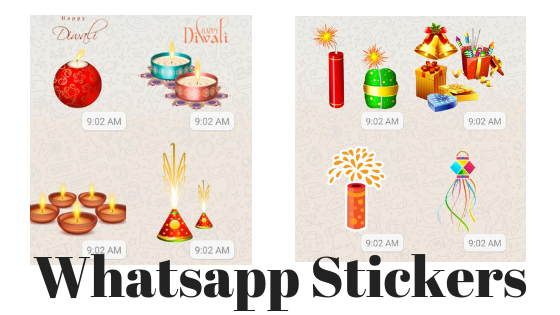
Whatsapp Stickers in Andriod

Whatsapp Diwali stickersWhatsapp Stickers are the latest trend in the Social Media Messaging Applicaion.  Its extremely easy and fun to send stickers to your contacts, esp in the ocassions of special festivals and Holidays.  Here is the step by step procedure to send Whatsapp Stickers to you friends and loved ones…

Step by Step procedure to download and use Stickers in Whatsapp Andriod:

  1. Open any individual chat or group where you intend to send the Whatsapp Stickers.
  2. Next to the text input field, tap EmojiWhatsapp emoji icon  then choose StickersWhatsapp Sticker icon .
  3. To add Whatsapp Sticker packs, tap AddWhatsapp Add icon .
  4. In the Stickers popup that appears, tap on DownloadWhatsapp Download icon  next to the Whatsapp Sticker pack you want to download. If prompted, tap DOWNLOAD • {file size} (where file size is displayed).
    • A green tick markWhatsapp Green Tick icon  will appear once the download is complete.
  5. Tap BackWhatsapp Back icon .
  6. Find & tap the sticker you want to send.
    • Note: Once you tap the sticker, it’ll send automatically.
Additional options to use while sending Whatsapp Stickers:
  • Tap on RecentsWhatsapp Recents icon  to view your recently used stickers and resend them.
  • Tap on FavoritesWhatsapp Favorites icon  to view your favorite stickers.
    • To favorite a sticker, lightly tap the sticker in your individual chat or group > ADD TO FAVORITES. Alternatively tap the EmojiWhatsapp emoji icon  > StickersWhatsapp Sticker icon . Once you find the sticker you want to favorite, tap and hold the sticker, then tap ADD.
    • To unfavorite a sticker, lightly tap the sticker in your individual chat or group > REMOVE FROM FAVORITES. Alternatively, tap EmojiWhatsapp emoji icon  > StickersWhatsapp Sticker icon  > FavoritesWhatsapp Favorites icon . Once you find the sticker you want to unfavorite, tap and hold the sticker, then tap REMOVE.
  • If you tap the heart boxWhatsapp Heart Box icon, it’ll show a set of sticker category icons, where stickers are categorized based on the emoji displayed on the icons.
    • Example: Tapping the heart boxWhatsapp Heart Box icon  will bring up any stickers containing hearts.
  • If you want more sticker options, tap AddWhatsapp Add icon . Scroll to the bottom of the ALL STICKERS tab and tap GET MORE STICKERS. This will take you to Google Play Store, where you can download sticker apps.
  • To view the sticker packs you’ve downloaded, tap Add Whatsapp Add iconMY STICKERS tab. If you want to delete a specific sticker pack, tap Delete Whatsapp Delete iconDELETE. To reorder your sticker packs, tap and drag ReorderWhatsapp Reorder icon  next to a sticker pack.
  • When sticker packs need to be updated, tap AddWhatsapp Add icon  when a green dot appears. In the ALL STICKERStab, tap UPDATE next to the sticker pack that needs to be updated. If prompted, tap UPDATE • {file size}.
    • A green check mark Whatsapp Green Tick icon will appear once the update is complete.

Source: https://faq.whatsapp.com/en/android/26000227/?category=5245251

Categories
Android Device Solutions

How to Hide The ‘Last Seen Time’ on Whatsapp

WhatsApp
WhatsApp (Photo credit: abulhussain)

Whatsapp is slowly rolling out support to hide the “Last Seen Time” infomation on Whatsapp. Below are the different ways you can do that(or atleast fake it).

IOS:

Whatsapp for IOS has already updated to a version which has the feature of hiding the “Last Seen Status”. Update to the latest version of Whatsapp and then you can activate it in the following way:

  1. Open WhatsApp and Goto ‘Settings’
  2. Goto ‘Advanced’ page
  3. Turn off the ‘Last Seen Timestamp’

Android:

This feature is available on Whatsapp for Android from the version 2.11.169 onwards. You can get the latest version of the app here: http://www.whatsapp.com/android/

Once you have the app and have installed it, here is how to activate the feature:

  1. Open Whatsapp and in the Menu Goto ‘Settings’
  2. Goto ‘Accounts’
  3. Goto ‘Privacy’
  4. Here you can disable the ‘Last Seen’ time.


Other Manual Hacks:

Disabling your Wifi & Data connection before opening your Whatsapp window makes sure your Last Seen time doesnt get updated.

Enhanced by Zemanta
Categories
Android Nexus 5 Solutions

How to Enable Whatsapp Notification Light – Nexus 5

Day 321: One More #Nexus5 #project365
Day 321: One More #Nexus5 #project365 (Photo credit: arncreddy296)

Nexus 5‘s notification LED can be configured to notify new messages on Whatsapp. It can be configured to show different color light based on the type of message received too. Here is how to do it:

  1. Open Whatsapp and goto the Settings page.
  2. Select “Notificaitons”
  3. Scroll down to find the section “Message Notifications” and select the “Light” option
  4. Choose the color of notification you want for messages

{adinserter 3}
To configure for Group Notifications, follow the first two steps as the above and then do this:

  • Scroll down to find the section “Group Notifications” and select the “Light” option
  • Choose the color of notification you want for group messages