Categories
Android Apps Solutions

Problem Loading Widget – Solved Android Error

Problem loading Widget Error – Sometimes Widgets on the Android home page fail to load and are replaced by “Problem Loading Widget” error. The main causes of this error include:

  • Removal of the Application that gave you that widget
  • Moving of the specific (Widget) Application from Internal Memory to SD card
  • Upgrading of the Application
  • Upgrading of the core operating system (leading to reinstall of the Application)
  • Change of SD card

There is no simple way to fix this error, as it can depend on what caused the error in the first place and how the Widget was originally designed.  Here are some quick steps you can follow to recover your widget:

Categories
Linux Open Source Solutions Web

Using Static IP Address On Ubuntu


By default most unix boxes now come with dynamic IP enabled for all its networking needs. This is a very useful configuration but at times it helps to know that a system’s IP will remain the same no matter what changes occur around it. A classic example of this case can be a server.

In any case if you want to change your unix box to use static IP the following simple steps will get your task done:

Categories
Android Apps

How to Fix the “Could Not Install On USB Storage Or SD Card” Error – Android

Android Market
Image via Wikipedia

The “Could Not Install On USB Storage Or SD Card” error on Android phones apparently occurs when something goes wrong with the installation of an app and temp file is left on your Android OS. There is a work around and a fix for this problem.

The Work Around:

  • Unmount your SD card
  • Install the app
  • Mount your SD card
  • Move the app to the SD card
{adinserter 3}

The Fix:
Note: I suggest you backup your sd card before you try this method. It worked perfectly on my Galaxy Ace but there is no guarantee that it might not cause any data loss.

  • Connect your phone to your PC as a mass storage device
  • Backup important data
  • Find the folder named “.android_secure”
  • Inside it, delete the file called “smdl2tmp1.asec”
  • Disconnect your phone
  • Install the App you were trying to install

Hope this helps you 🙂

Categories
Android

Set Contact’s Default Picture/Name/Number In A Single Shot – Android

Android robot logo.
Image via Wikipedia

One of the best features of Android is its ability to merge your social networking accounts with your contacts. By doing that it brings all the information needed by you to a single place and makes it extremely easy to communicate by centralizing your contacts.

But on the flipside, it becomes extremely irritating when you realize that a contact has multiple userpics for different services and your phone has picked the random animated image as the default.

So how do we fix this problem and select the right default image for a contact?

Fortunately there is a simple way to specify the Default Picture/Name/Number/Email for a contact.
{adinserter 3}
To change the default information of a contact do the following:

  1. In your contacts page (where you have the list of your contacts) long press a contact that you want to change.
  2. When the menu comes up, press select “Mark as Default”
  3. Now you will be given a list of options for the Contacts details.
  4. Select the default in each section and hit save
Categories
Web

Remove Unwanted Apps From Your Facebook Profile…

Image representing Facebook as depicted in Cru...
Image via CrunchBase

Facebook might be a fun social networking site to meet new friends and interact with them but thanks to the unimaginable number of applications available on Facebook it makes it a hard task to keep tab of all the apps you have authorized. A lot of these apps have access to information like your photos, friends and personal details. It clearly seems like a good idea to keep an eye on the applications you have added on your facebook page.

One of the simplest ways to check on the applications you have added is by following the below steps.

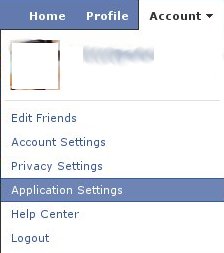
1. Go to the Application Settings page from your Facebook home page. The link is available under Account

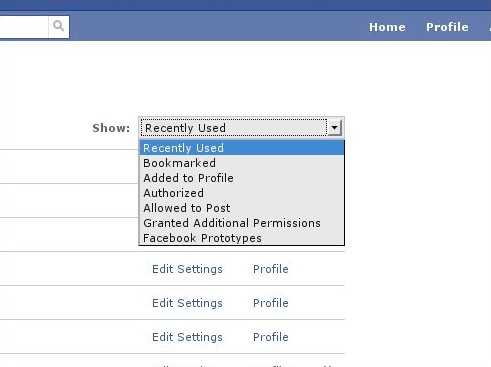
2. In the next page, click on the drop down box next to the text “Show:” and choose Authorized

3. Double check the list of applications you have added, to remove an application simply hit the x at the end of the line for each application.

Do this check once every few weeks depending you your Facebook usage.

Reblog this post [with Zemanta]