Categories
Lightroom Media Solutions Windows

How To Install Lightroom Presets

There are multiple ways to install Lightroom Presets.  Here we will go through the steps Involved.  There are 2 ways to install presets on your Lightroom.  They are:

  1. Moving Files into Lightroom Presets Folder
  2. Importing Presets in Lightroom Directly

Both these methods are easy and can be done with minimum effort.

How To Install Lightroom Presets via Moving Files into Lightroom Presets Folder

Common Steps:

  1. Download and Extract the Presets of your choice.
  2. Keep the folder containing the Presets open and ready to Copy.

How to Install Lightroom Presets in Lightroom 4, 5, 6, CC & Classic CC for Windows

  1. Open Lightroom
  2. In the Main Menu Go to: Edit > Preferences
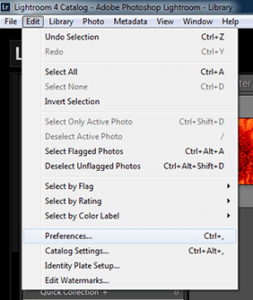
    Windows Open Lightroom Preferences
  3. Click on the Button – Show Lightroom Presets Folder
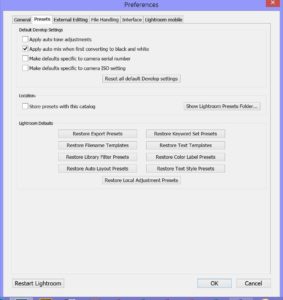
    Windows Goto Presets Tab in Lightroom Preferences
  4. Double click on Lightroom
  5. Double click on Develop Presets
  6. Copy the folder(s) of your presets into the Develop Presets folder
  7. Restart Lightroom
  8. In the Develop Tab you will see all the recognized Presets listed in the Presets Section
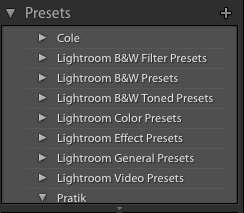
    Presets Section in Lightroom Develop

How to Install Lightroom Presets in Lightroom 4, 5, 6, CC & Classic CC for Mac

  1. Open Lightroom
  2. In the Main Menu Go to – Lightroom (Drop down Menu) > Preferences (See below picture)
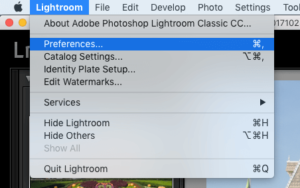
    MAC Open Lightroom Preferences
  3. Click on the Button titled – Show Lightroom Presets Folder
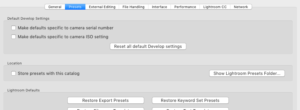
    MAC Goto Presets Tab in Lightroom Preferences
  4. Navigate to – Lightroom > Develop Presets
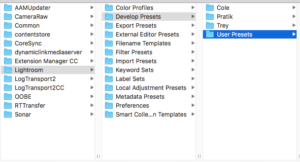
    Mac Navigate to LightRoom Presets Folder
  5. Copy the folder(s) of your presets into Develop Presets folder
  6. Restart Lightroom
  7. In the Develop Tab you will see all the recognized Presets listed in the Presets Section
    Presets Section in Lightroom Develop

How To Install Lightroom Presets by Importing Presets in Lightroom Directly

Common Steps:

  1. Download and Extract the Presets of your choice.
  2. Keep the folder containing the Presets open and ready to Copy.

How to Install Lightroom Presets in Lightroom 4, 5, 6, CC & Classic CC for Windows

  1. Open Lightroom
  2. Navigate to the Develop Tab
  3. Create a new folder inside of Lightroom. You can do this by either:
    1. Pressing Ctrl + Alt + N
    2. Click on Develop in the Main Menu and select New Preset Folder
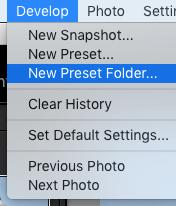
    3. Right-click in the Preset Section and Select New Folder
  4. Import presets into new folder by right clicking on your folder name and selecting Import
  5. Locate the unzipped folder that you extracted from the zip file earlier and select all of your presets for that folder and click Import

How to Install Lightroom Presets in Lightroom 4, 5, 6, CC & Classic CC for MAC

  1. Open Lightroom
  2. Navigate to the Develop Tab
  3. Create a new folder inside of Lightroom. You can do this by either:
    1. Pressing Command + Option + N
    2. Click on Develop in the Main Menu and select New Preset Folder
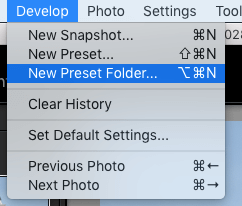
    3. Right-click in the Preset Section and Select New Folder
  4. Import presets into new folder by right clicking on your folder name and selecting Import
  5. Locate the unzipped folder that you extracted from the zip file earlier and select all of your presets for that folder and click Import

 

Categories
Open Source OsX RabbitMq Solutions Web

RabbitMQ Server – Issue with High Sierra – Mac OS

After updating to High Sierra, I faced issues with starting rabbitmq-server.  The command gave the following error:

RabbitMQ 3.6.3. Copyright (C) 2007-2016 Pivotal Software, Inc.
## ## Licensed under the MPL. See http://www.rabbitmq.com/
## ##
########## Logs: /usr/local/var/log/rabbitmq/rabbit@localhost.log
###### ## /usr/local/var/log/rabbitmq/rabbit@localhost-sasl.log
##########
Starting broker...
completed with 10 plugins.
Assertion failed: (ctx), function digest_update, file /BuildRoot/Library/Caches/com.apple.xbs/Sources/boringssl/boringssl-109.20.5/apple/crypto/digests.c, line 49.
/usr/local/sbin/rabbitmq-server: line 236: 2681 Abort trap: 6 start_rabbitmq_server "$@"

I narrowed down the issue to a problem with Home Brew. I had installed rabbitmq via HomeBrew a while back and with the changes in the operating system rabbitmq was failing to start.

Running the following command gave the below error message:

$ brew update
xcrun: error: invalid active developer path (/Library/Developer/CommandLineTools), missing xcrun at: /Library/Developer/CommandLineTools/usr/bin/xcrun
Error: /usr/local is not writable. You should change the ownership
and permissions of /usr/local back to your user account:
sudo chown -R $(whoami) /usr/local

How to fix RabbitMQ Server – Issue with High Sierra

  1. Reinstall Home Brew using the following command:
    ruby -e "$(curl -fsSL https://raw.githubusercontent.com/Homebrew/install/master/install)"
  2. Then run:
    brew update
  3. Then run:
    brew reinstall rabbitmq
  4. Once done you must  be able to run rabbitmq-server to get the server up and running.
Categories
Chrome FaceBook Open Source Solutions Web

Top 50 High DA Directory Submission Sites

seoPosting your links in the right sites can send your SEO performance shooting through the roof.  One of the most important factors for classifying such sites is Domain Authority (DA).  Higher the Domain Authority the more value a link from that site holds for your SEO.

One of the best strategies is to put your links on these sites and watch your SEO performance go up.  Some of the sites need a back link to post your link and some even ask for a fee.  Finding these sites are not easy and hence here is a list of Directory Sites that have good DA, that you can use.

Top 50 High DA Directory Submission Sites for Quality Backlinks

Directory Name Name DA
Dmoz.in.net dmoz.in.net 75
Scrub the Web scrubtheweb.com 73
Directory World directoryworld.net 70
Free Website Directory freewebsitedirectory.com 58
So Much somuch.com 57
Vie Search viesearch.com 56
Jayde jayde.com 54
T Section tsection.com 52
1 Abc 1abc.org 52
Business Seek businessseek.biz 51
R Directory rdirectory.net 49
Cipinet cipinet.com 46
Pro Link Directory prolinkdirectory.com 45
Wwwi wwwi.co.uk 44
Directory My Link directmylink.com 44
Linkpedia linkpedia.net 44
9 Sites 9sites.net 44
Amray amray.com 43
Directory Fire directoryfire.com 42
Gain Web gainweb.org 42
The Web Directory the-web-directory.co.uk 42
Scrabble Stop links.scrabblestop.com 42
Submission 4u submission4u.com 42
Elite Sites Directory elitesitesdirectory.com 42
Suggest URL suggest-url.net 39
247 Web Directory 247webdirectory.com 39
Family Directory familydir.com 39
Wikid Web wikidweb.com 37
Synergy Directory synergy-directory.com 36
Vision Web Directory visionwebdirectory.com 35
Pi Series piseries.com 34
Nexus Directory nexusdirectory.com 34
Digg Directory diggdirectory.com 34
Dir4uk dir4uk.com 34
Royal Link Up royallinkup.com 34
Inteligentd inteligentd.com 33
Nipao nipao.org 33
10 Directory 10directory.com 33
Xysyst xysyst.net 33
Linkdir linkdir.info 32
SEO Up Link seouplink.com 32
Vision Web SEO visionwebseo.com 32
PR3 Plus pr3plus.com 31
The Net Directory the-net-directory.com 31
Best Free Websites bestfreewebsites.net 30
Directory Books directorybooks.com 30
Sighber Cafe sighbercafe.com 29
PR Web Link prweblink.com 29
Leading Link Directory leadinglinkdirectory.com 28
Suggest Site suggestsite.net 25
SEO Free Links seofreelinks.com 24
Categories
Android Apps Device Open Source Solutions

Swift Key – Turn Off Keyboard Touch Vibration

Swift Key is one of the best keyboards for Android and IOs. By default, its configured to enable vibration on key press (usually it takes the system defaults). If you are someone who dislikes this feature, here is a simple way to turn off keyboard touch vibration in it:

Steps to Disable Keyboard Touch Vibration in Swift Key:

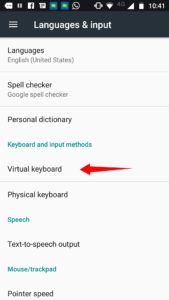
  • Go to Home -> Settings -> Language & input

    Android Settings Page
    Android Settings Page
  • Tap on “Virtual Keyboard”
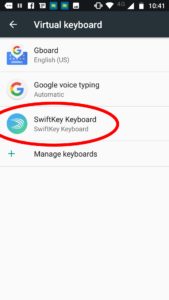
    Android Language & input
  • Locate “SwiftKey Keyboard” in the list and tap it
    Virtual Keyboard Menu
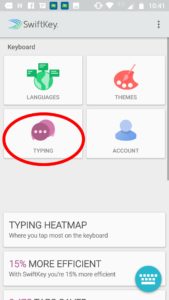
  • This will open the SwiftKey Settings… Tap on “Typing”
    Swiftkey Settings
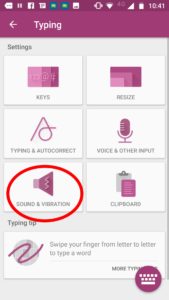
  • Tap on “Sound & Vibration”
    Swiftkey Sound and Vibration Menu
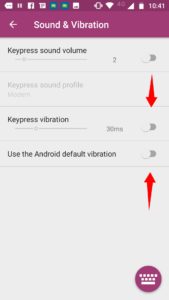
  • Turn off “Keypress Vibration” & “Use the Android default vibration”
    Disable Vibration in SwiftKey
Categories
Laptop OsX Solutions

Open Apps From Unidentified Developers in Mac OS Sierra

Here is How to open applications that can’t be opened as they are from an ‘unidentified developer’ in Mac OS Sierra

How to Open Applications From Unidentified Developers in Mac OS Sierra

Opening a Specific App:

If you would like to allow just one specific application to run, use the following steps:

  1. Hold down the Control key and click the application icon.
  2. A contextual menu should appear – here Choose ‘Open’.
  3. A popup will appear asking you to confirm this action – Click the Open button.

Once you open the App is opened its stored as an exception in the settings and you can open it in future directly by double clicking it.

Allowing all Apps to Open(Works with some versions of Sierra):

If you would like to allow all applications from unidentified developers to run, use the following steps:

  1. Click on the “Apple” menu on the top left of your screen
  2. Select “System Preferences” option from the menu
  3. Choose ‘Security & Privacy’ from the System Preferences menu.
  4. Select ‘General’ from the tabs at the top of the Security & Privacy page.
  5. Click the ‘Lock icon’ at the bottom left of the window.
  6. Enter your administrative username and password and click Unlock
  7. Select ‘Anywhere’ from list of places to allow downloaded applications from. If this option does not show up in the window then you will have use the first method with each app.
  8. A popup window will appear asking you to confirm your selection. Click the Allow From Anywhere button.