Categories
Open Source Solutions

Bulk Edit Photos using Phatch

Phatch Mascot & Logo
Image via Wikipedia

Phatch is a simple to use cross-platform GUI Photo Batch Processor which handles all popular image formats. Phatch can batch resize, rotate, apply perspective, shadows, rounded corners, … and more in minutes instead of hours or days if you do it manually. Phatch allows you to use EXIF and IPTC tags for renaming and data stamping.

Phatch is an incredible tool to quick fire batch processing of photos. I use it most commonly to resize images to a fixed size, for example while uploading images its preferred to have a good resolution but not as high as what the digital camera provides. I use Phatch to reduce the resolution of the photos in the photo set and then upload the images. This saves a lot of time and bandwidth.

Using Phatch is simple but might confuse a newbie. Here is a simple startup guide to Phatch.

  • Run Phatch and the screen below will show up.
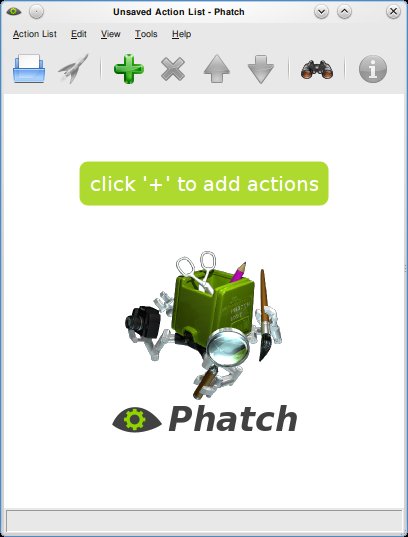
  • Click on the ‘+’ sign to add actions, you can choose from a plethora of options. You can use the resize option to resize images ect.
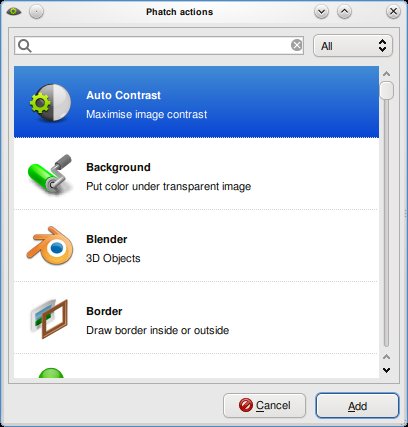
  • Once the options are selected you will need to put a save option at the end, this will save the file for you. You can choose the name, format and other options here.
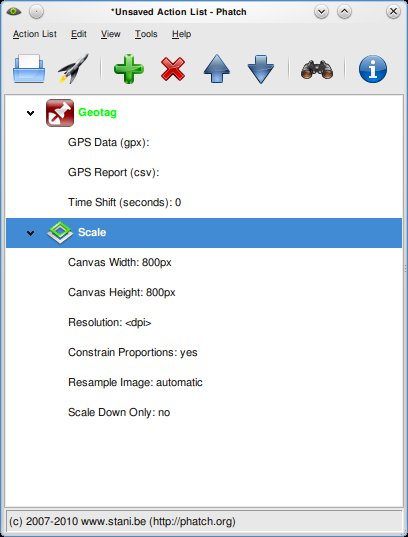
  • Hit the rocket ship button to start processing. A dialog will ask you details of the file to be processed and where it must be saved. Once done hit the ‘Batch’ button and wait till Phatch tells you its done processing the images.

To install Phatch on Ubuntu, use the following command:
sudo apt-get install phatch

You can download the installation file for Windows and other Operating Systems here

Enhanced by Zemanta
Categories
Linux Open Source

KNemo – Monitor your Internet usage…

KNemo is a Network monitoring program for Linux. The program stores information wrt the amount of data communicated thru your various LAN connections and also provides a way to automatically disable the internet on certain conditions.

KNemo is a simple addon program to your network management enabling you to control your internet usage. It also provides methods to disable internet in case you exceed the monthly bandwidth limit of your plan. Its an excellent tool to study your usage of internet over time.

To install Knemo on a ubuntu system, use the following command:
sudo apt-get install knemo

Enhanced by Zemanta
Categories
Linux Media Open Source

Managing Collections with Tellico

Tellico
Image by *Luana* via Flickr

Tellico is a versatile collection manager for Linux. The KDE based application is designed to handle almost any type of perceivable collection and convert it to a easily manageable solution. If you have a huge collection of movies, music, books, comics ect and regularly lend them out, Tellico is the perfect program to keep track of your collections.

Tellico has pre-designed support for collections of: Books, Comics, Movies, Music, Coins, Stamps, Board Games, Wines. Cards and Games. The databases are designed to make data entry and search both relevant and easy.

Categories
Open Source Web

Threaded Comments in WordPress

WordPress
Image via Wikipedia

WordPress has a builtin feature of allowing threaded comments for your posts. This feature is by default disabled and has to be “enabled”… Here is how to do that:

  • Login to your WordPress install as Admin(or a user with Admin permissions).
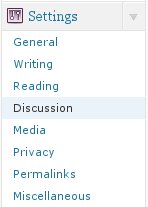
  • Navigate to the “Settings” menu and the “Discussions” option in that menu.
  • Under “Other Comment Settings” section, you will find the option: Enable threaded (nested) comments.
  • Check the option and provide the maximum depth of a thread.

Now nested comments should be enabled on your WordPress Blog.

Enhanced by Zemanta
Categories
Hardware Open Source Solutions Ubuntu

Playing DVDs in Ubuntu

Dvd-video-logo
Image via Wikipedia

Ubuntu by default does not play encrypted DVDs. This is because most commercial DVDs are encrypted with CSS (Content Scrambling System), which restricts the software that can play a DVD.

To enable you must install the libdvdcss2 package to allow Ubuntu to play DVDs. For that you need to run the following commands:

sudo apt-get install libdvdread4

Followed by:

sudo /usr/share/doc/libdvdread4/install-css.sh

That will install the required libraries and now your encrypted DVDs will be readable.

Please Note: Check with your local laws to make sure that usage of libdvdcss2 would be legal in your area.

Enhanced by Zemanta