The “Could Not Install On USB Storage Or SD Card” error on Android phones apparently occurs when something goes wrong with the installation of an app and temp file is left on your Android OS. There is a work around and a fix for this problem.
The Fix: Note: I suggest you backup your sd card before you try this method. It worked perfectly on my Galaxy Ace but there is no guarantee that it might not cause any data loss.
One of the best features of Android is its ability to merge your social networking accounts with your contacts. By doing that it brings all the information needed by you to a single place and makes it extremely easy to communicate by centralizing your contacts.
But on the flipside, it becomes extremely irritating when you realize that a contact has multiple userpics for different services and your phone has picked the random animated image as the default.
So how do we fix this problem and select the right default image for a contact?
Fortunately there is a simple way to specify the Default Picture/Name/Number/Email for a contact.
{adinserter 3}
To change the default information of a contact do the following:
In your contacts page (where you have the list of your contacts) long press a contact that you want to change.
When the menu comes up, press select “Mark as Default”
Now you will be given a list of options for the Contacts details.
There are a lot of health and fitness apps out there for Android devices. I have been actively trying out different apps to log my daily runs and found only a few apps fit the bill. Seeking a fine balance between versatility, stats, fancy graphs and motivation; I narrowed down my favorites to the following:
I bought the Samsung Galaxy Ace a little over a month ago. The switch to a smart-phone has been quite exciting and here are a few of things that I have had a significant impact on my experience with the Ace.
The Ace was supposed to replace my GPS Navigator, (Basic) Phone and IPod Touch, it managed to do that and more thanks to a few free apps from the Android Market.
The ACE:
One of the most striking features of the Ace is that its a very classy looking phone. The default back cover has a very nice feel and it was this combination that made me pick up the Ace over the Galaxy SL
At a screen size of 3.5″ it felt just the right size in my pockets and my palm, plus it provided enough screen real estate to read documents easily.
The hardware home button provides a little more easy access as compared to the touch based buttons of other phones of the same class. The Back and Menu buttons are touch based and are almost invisible unless activated, another feature that is very soothing to the eyes.
One of the biggest -ve points of the phone is the pathetic earphones that come with the phone. They are at best average and considering the lack of supported earphones for the Ace its a very irritating problem that I have to live thru for now.
Android:
The Android OS is one of the reasons I went for the Ace. The customizability of the OS is one of the biggest advantages over the iOS but on the flip-side the OS is far less stable and its very irritating at times.
GPS
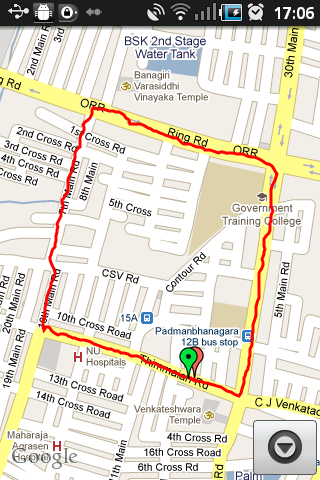
I was pretty blown away by the features packed into Android thanks to the GPS. My iPod touch came without a GPS and the usefulness of one wasn’t evident until I started logging my morning runs and started using navigation.
The GPS tends to drain the batteries but considering that its mostly used inside a car it is better if you have a charging setup for your phone in the car.
The GPS is impressively sensitive and has been a great tool for my runs in the morning.
Phone:
I am not a huge fan of the touch interface for making and receiving calls but the big winner is the central contact system that is wonderfully useful.
I decided against using the default Swype keyboard available with the phone, initially and installed the Swift Keyboard. After using the swift keyboard for a while I switched back to the Swype keyboard and felt much more at home with it.
Music Player:
The default music player wasn’t particularly good and I had to go for the paid Poweramp player. The lack of a controller in the lock screen and all in all better control of playlists were the primary driving factors. I tried Winamp and DoubleTwist but PowerAmp was clearly the best.
So thats my first thoughts about my new smartphone. Its been a great help so far and looks like it will be very hard to move back to the ordinary phone after this.
Packrati.us provides a simple service that bookmarks every single link you post in your Twitter feed. Additionally it even bookmarks links in tweets you mark as your favorite. It also uses any hashtags you include as tags for your bookmark and includes the full text of the tweet in the bookmark comments.
Packrati is a wonderful lifesaver when you are in search of that link you tweeted ages ago but cant seem to find anywhere.