Categories
Linux

Search for Multiple Strings in Linux Command Line

Problem:  I have a text file with a lot of information, I need to pick lines of information containing a particular pattern(s) and store it in another file

Solution: Use egrep to filter out lines with required pattens and write the result in a file.

egrep is actually a short form for “grep -E”, a command used to handle pattens while searching.

For Eg.
Lets say you have a text file with a list of file names and you want to filter out only those names that are of a certian type. For the sake of this example lets assume you want to only see filenames of files ending with .mp3 or .wav or .ogg

The command you need to use is:

cat file | egrep “.mp3|.wav|.ogg” > musiclist.txt

Voila you now have a file that sorts out your music files.

Bonus: If you want to list out all the music files you have stored under a particular directory you can use the following command

ls -1R /path/to/music | egrep “.mp3|.wav|.ogg” > musiclist.txt

Reblog this post [with Zemanta]
Categories
Web

Remove Unwanted Apps From Your Facebook Profile…

Image representing Facebook as depicted in Cru...
Image via CrunchBase

Facebook might be a fun social networking site to meet new friends and interact with them but thanks to the unimaginable number of applications available on Facebook it makes it a hard task to keep tab of all the apps you have authorized. A lot of these apps have access to information like your photos, friends and personal details. It clearly seems like a good idea to keep an eye on the applications you have added on your facebook page.

One of the simplest ways to check on the applications you have added is by following the below steps.

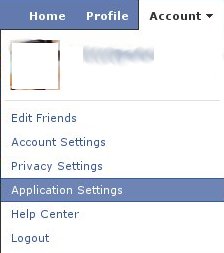
1. Go to the Application Settings page from your Facebook home page. The link is available under Account

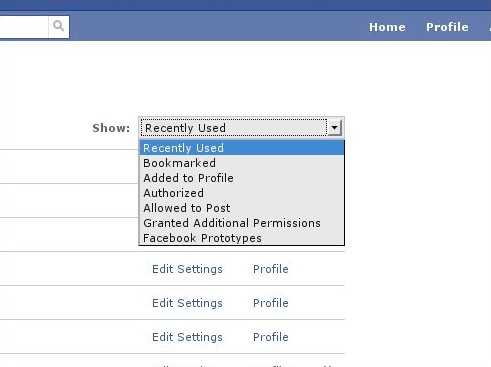
2. In the next page, click on the drop down box next to the text “Show:” and choose Authorized

3. Double check the list of applications you have added, to remove an application simply hit the x at the end of the line for each application.

Do this check once every few weeks depending you your Facebook usage.

Reblog this post [with Zemanta]
Categories
Open Source Web

JDownloader – Download Files From File Sharing Sites At Will…

JDownloader (How to)
Image by .::E1ement2048::. via Flickr

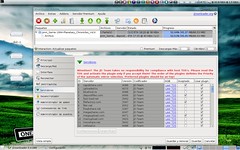
JDownloader is a free java-based program that completely automates the process of downloading files from popular file sharing sites like Rapidshare, Megaupload ect…

The problem with most file sharing sites is that the free accounts have a limit on the amount to data you can download and additionally it requires you to wait for a certain period of time before downloading the files. JDownloader is a beautiful application that automates the process making it possible for you to schedule downloads and even queue files to be downloaded.

JDownloader works on Windows/Mac/Linux and is simple to get started with.
So if you like to download a lot of files from file sharing sites then give JDownloader a try…

Reblog this post [with Zemanta]
Categories
Open Source Solutions Web

Best DNS, Got Even Better…

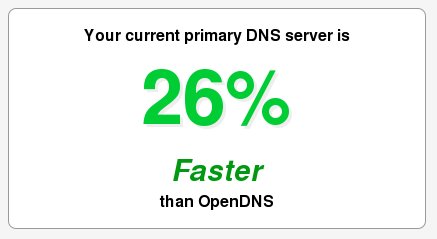
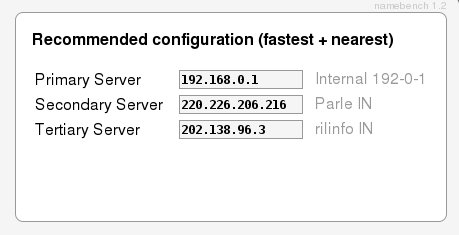
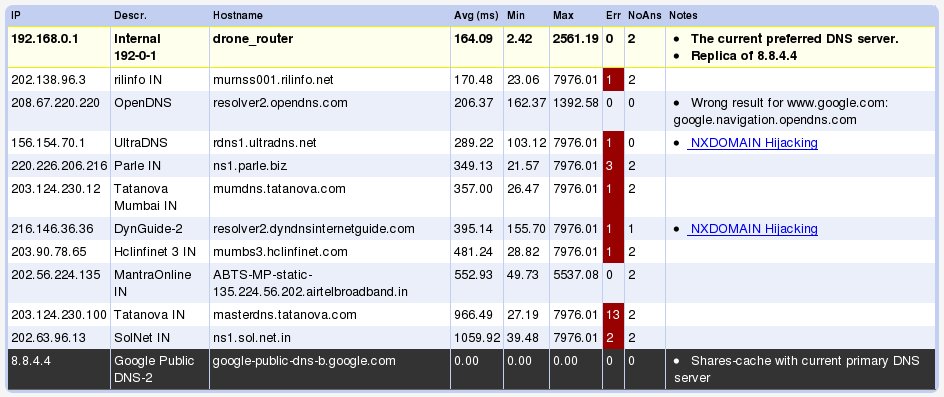
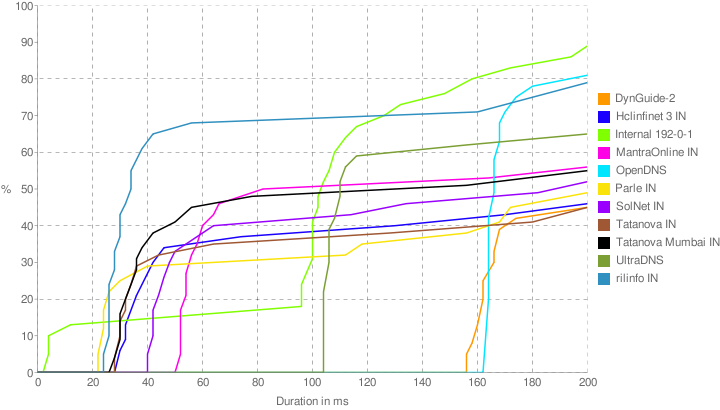
A while back on this site we had mentioned about a DNS benchmarking tool called Namebench.   The Google Code project has been having some major updates since then and now lookes more jazzier and generates some lovely graphs after analysing your connection for you.

The tool can be downloaded here: http://code.google.com/p/namebench/

Screenshots:

Reblog this post [with Zemanta]