Categories
Device Hardware Laptop Linux Solutions Ubuntu

Getting the Latest Ubuntu Graphics Drivers on Samsung NC20

Official Ubuntu circle with wordmark. Replace ...
Image via Wikipedia

To get the best graphics performance out of your Samsung NC20, you will need to install the latest graphics drivers.  These drivers unfortunatey are not easy to find on the web, so here is a step-by-step installation instructions for driver installation on Ubuntu 10.10.  Special thanks to the wonderful folks at Ubuntu Forums(Wonderful source, thumbs up to the contributors).
{adinserter 2}
The steps explained below were taken from post #542 from this Ubuntu Forums page.

  1. Download this zip file via_chrome9_drv_u1010_v2.zip and unzip it
  2. Open a terminal window and change into that directory (“cd ~” for home dir)
  3. Install the “dkms” package from Ubuntu package repository
    $ sudo apt-get install dkms
  4. Install the kernel driver:
    $ sudo dpkg -i chrome9-drm_87a.55689-maverick1_all.deb
  5. Install the X.org driver:
    $ sudo dpkg -i --force-confmiss --force-confnew xserver-xorg-video-chrome9_87a.55729-maverick1_i386.deb
  6. Update /etc/X11/xorg.conf file
  7. Copy the provided xorg.conf.nc20 file to xorg.conf
    $ sudo mv /etc/X11/xorg.conf /etc/X11/xorg.conf.backup
    $ sudo cp /etc/X11/xorg.conf.nc20 /etc/X11/xorg.conf
  8. Reboot Ubuntu
  9. Check if it’s working: Open /var/log/Xorg.0.log in a text editor. If you see several lines containing “VIA(0)”, then the new driver is being used.

Also note:

  • The sample xorg.conf.nc20 is only installed if you add the “–force-confmiss –force-confnew” options to dpkg.
  • Although VIA marks the source code this hacked driver is based on as stable, I cannot guarantee it to be bug-free. Use with caution.
Enhanced by Zemanta
Categories
Media Open Source

Adding WaterMarks to Videos in KdenLive


A range of video effects in Kdenlive
Image via Wikipedia

Kdenlive is a wonderful opensource program for video editing that I have off late become a huge fan of. The software is little tough to initially understand but once you get used to it, its very easy to make pleasing videos on it.


One of the recent problems I faced in Kdenlive was to add a watermark to a video I had created. One of the ways to create a watermark on a kdenlive project is as follows:

  1. Create the base project and save your project
  2. Now create a new project with same project settings – fps, resolution etc.
  3. Select «Add Clip» and select the first project you created
  4. Now create a title slide with the information that you will use to watermark.
  5. Now using the Composite transition place the title slide over the first project. You can use the opacity control to control the transperacy of your water mark
  6. Render you video.
Enhanced by Zemanta


Categories
Solutions Windows

Protect your Thumb Drive from Viruses using a Simple Hack


One of the easiest ways for getting your system infected with viruses is by using infected thumbdrives.  Most viruses create a startup file with the name “autorun.inf” and in the file point to the location of the virus(within the drive) to be run automatically when the thumb drive is detected.

Most Antivirus programs detect these viruses but there is a simple hack that can be used to prevent these Autorun viruses from infecting your drive.

All you need to do is:

  1. Delete the “autorun.inf” file in the root folder of your thumb drive(if the file exists)
  2. Create a new folder with the name” autorun.inf” in the root folder of the thumb drive

How does this work?
Well most viruses create the autorun.inf file when the thumb drive is inserted, by creating a folder with the same name the virus cannot create the file. Also since its a folder its not straightforward to delete and replace it(thank you Fat32 filesystem)

Ps: This hack works with most common viruses but its still recomended that you have an updated antivirus program to faithfully protect your system against virus attacks.

Enhanced by Zemanta


Categories
Linux

Determine Mounted Filesystem Types on Linux


In linux its very easy to lose track of filesytem types if you have been using it for a while. With the advent of ext4(and NTFS) systems its hard to guess which filesystem type is running on each partition.

One of the easiest ways to determine the filesystem type of a mounted filesystem is to use the mount command. The output of the command is of the type:

haas@techhacks:~$ mount
/dev/sdb8 on / type ext4 (rw,errors=remount-ro,commit=0)
proc on /proc type proc (rw,noexec,nosuid,nodev)
none on /sys type sysfs (rw,noexec,nosuid,nodev)
fusectl on /sys/fs/fuse/connections type fusectl (rw)
none on /sys/kernel/debug type debugfs (rw)
none on /sys/kernel/security type securityfs (rw)
none on /dev type devtmpfs (rw,mode=0755)
none on /dev/pts type devpts (rw,noexec,nosuid,gid=5,mode=0620)
none on /dev/shm type tmpfs (rw,nosuid,nodev)
none on /var/run type tmpfs (rw,nosuid,mode=0755)
none on /var/lock type tmpfs (rw,noexec,nosuid,nodev)
/dev/sdb6 on /media/Windows type fuseblk (rw,nosuid,nodev,allow_other,blksize=4096,default_permissions)
/dev/sdb9 on /home type ext4 (rw,commit=0)
binfmt_misc on /proc/sys/fs/binfmt_misc type binfmt_misc (rw,noexec,nosuid,nodev)
/dev/sda1 on /media/ext type ext4 (rw,nosuid,nodev,uhelper=hal)


As you can see, second last column displays the file system type. For example first line [/dev/sdb8 on / type ext4 (rw,errors=remount-ro,commit=0)] can be read as follows:

  • /dev/sdb8 : Partition
  • / : File system
  • ext4 : File system type
  • (rw,errors=remount-ro,commit=0) : Mount options
Enhanced by Zemanta


Categories
Open Source Solutions

Bulk Edit Photos using Phatch

Phatch Mascot & Logo
Image via Wikipedia

Phatch is a simple to use cross-platform GUI Photo Batch Processor which handles all popular image formats. Phatch can batch resize, rotate, apply perspective, shadows, rounded corners, … and more in minutes instead of hours or days if you do it manually. Phatch allows you to use EXIF and IPTC tags for renaming and data stamping.

Phatch is an incredible tool to quick fire batch processing of photos. I use it most commonly to resize images to a fixed size, for example while uploading images its preferred to have a good resolution but not as high as what the digital camera provides. I use Phatch to reduce the resolution of the photos in the photo set and then upload the images. This saves a lot of time and bandwidth.

Using Phatch is simple but might confuse a newbie. Here is a simple startup guide to Phatch.

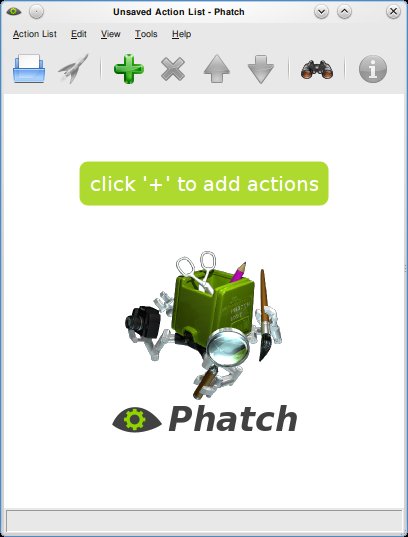
  • Run Phatch and the screen below will show up.

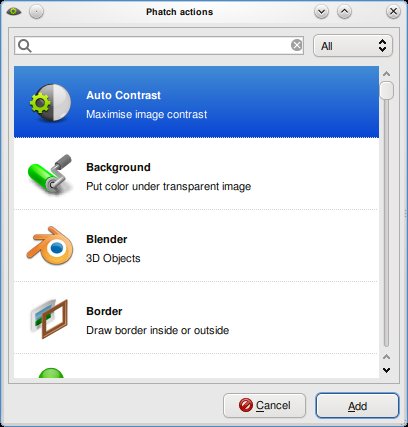
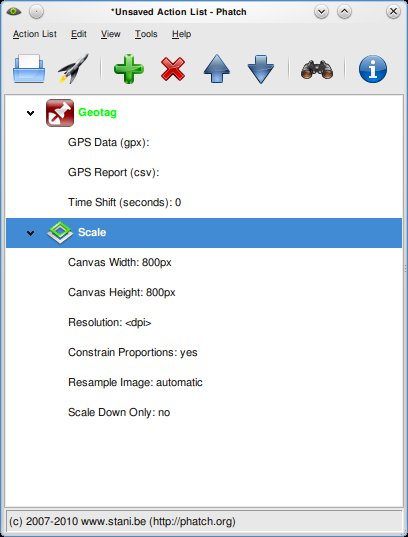
  • Click on the ‘+’ sign to add actions, you can choose from a plethora of options. You can use the resize option to resize images ect.

  • Once the options are selected you will need to put a save option at the end, this will save the file for you. You can choose the name, format and other options here.

  • Hit the rocket ship button to start processing. A dialog will ask you details of the file to be processed and where it must be saved. Once done hit the ‘Batch’ button and wait till Phatch tells you its done processing the images.

To install Phatch on Ubuntu, use the following command:
sudo apt-get install phatch

You can download the installation file for Windows and other Operating Systems here

Enhanced by Zemanta