Categories
Linux Solutions Ubuntu Web

Transfer files Effortlessly between Ubuntu Systems using Kepas

Kepas is a KDE4 file transfer tool. It discovers your local LAN for buddies (KDNSSD) and lets you transfer files or Klipper(KDE Clipboard) entries from a tray icon or using drag and drop with the Kepas plasmoid.

Kepas has only one requirement, that it must be installed in all the systems that are expected to be part of the network sharing group.

Categories
Open Source Solutions Web

Firefox: Spell Check Single Line Fields

Mozilla Firefox word mark. Guestimated clear s...
Image via Wikipedia

Firefox by default spell checks text fields, it has the built in ability to spell check single line fields(search bars ect) but that is disabled by default.

To activate the ability of firefox to spell check single line fields, do the following:

  • Bring up your about:config page. You can do this by typing “about:config” in your address bar and clicking on “I’ll be careful, I promise” button
  • In the “Filter” field type layout.spellcheckDefault.
  • As you can see, the integer value is 1. Double-click on it, then enter 2 as its new value.
  • Click OK.
Reblog this post [with Zemanta]
Categories
Linux Open Source Ubuntu Web

Setting Up Simple Dropbox Integration with Ubuntu

Image representing Dropbox as depicted in Crun...
Image via CrunchBase

The default installer of Dropbox for Ubuntu works with the Nautilus file manager. But this integration is not always desireable, below is a method to install Dropbox on your Ubuntu box without installing Nautilus.

Categories
Web

Remove Unwanted Apps From Your Facebook Profile…

Image representing Facebook as depicted in Cru...
Image via CrunchBase

Facebook might be a fun social networking site to meet new friends and interact with them but thanks to the unimaginable number of applications available on Facebook it makes it a hard task to keep tab of all the apps you have authorized. A lot of these apps have access to information like your photos, friends and personal details. It clearly seems like a good idea to keep an eye on the applications you have added on your facebook page.

One of the simplest ways to check on the applications you have added is by following the below steps.

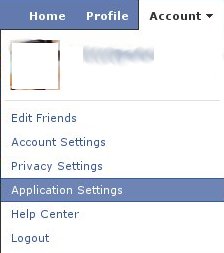
1. Go to the Application Settings page from your Facebook home page. The link is available under Account
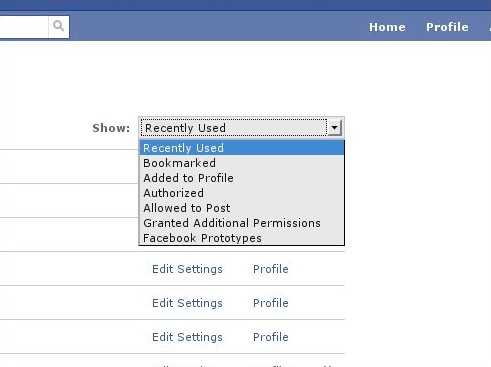
2. In the next page, click on the drop down box next to the text “Show:” and choose Authorized
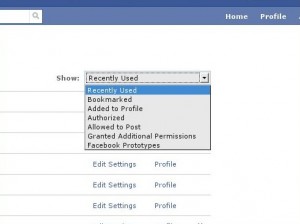
3. Double check the list of applications you have added, to remove an application simply hit the x at the end of the line for each application.

Do this check once every few weeks depending you your Facebook usage.

Reblog this post [with Zemanta]
Categories
Open Source Web

JDownloader – Download Files From File Sharing Sites At Will…

JDownloader (How to)
Image by .::E1ement2048::. via Flickr

JDownloader is a free java-based program that completely automates the process of downloading files from popular file sharing sites like Rapidshare, Megaupload ect…

The problem with most file sharing sites is that the free accounts have a limit on the amount to data you can download and additionally it requires you to wait for a certain period of time before downloading the files. JDownloader is a beautiful application that automates the process making it possible for you to schedule downloads and even queue files to be downloaded.

JDownloader works on Windows/Mac/Linux and is simple to get started with.
So if you like to download a lot of files from file sharing sites then give JDownloader a try…

Reblog this post [with Zemanta]