Categories
Final Draft Solutions

Final Draft 9/8: How to create a title page

Final Draft
Final Draft (Photo credit: Wikipedia)

The title page of a Final Draft document contains information of the Title, Author, Copyright and at times the cast, scene & set info. Its advisable to fine tune it to ones requirement to give your document a finished look

Here is how to modify the Title Page in Final Draft 8/9:

  1. Open the title page in the following way:
    • in Final Draft 9 for windows: click on Title Page icon in the Ribbon
    • in Final Draft 9 for Mac or Final Draft 8: goto the Toolbar and choose Document > Title Page.
  2. Type the information over the existing sample text.
  3. 3. Go to File > Close.
  4. 4. Once back at your script, simply save it (File > Save) and your title page is saved with the script.


Categories
Android Device Solutions

How to Hide The ‘Last Seen Time’ on Whatsapp

WhatsApp
WhatsApp (Photo credit: abulhussain)

Whatsapp is slowly rolling out support to hide the “Last Seen Time” infomation on Whatsapp. Below are the different ways you can do that(or atleast fake it).

IOS:

Whatsapp for IOS has already updated to a version which has the feature of hiding the “Last Seen Status”. Update to the latest version of Whatsapp and then you can activate it in the following way:

  1. Open WhatsApp and Goto ‘Settings’
  2. Goto ‘Advanced’ page
  3. Turn off the ‘Last Seen Timestamp’

Android:

This feature is available on Whatsapp for Android from the version 2.11.169 onwards. You can get the latest version of the app here: http://www.whatsapp.com/android/

Once you have the app and have installed it, here is how to activate the feature:

  1. Open Whatsapp and in the Menu Goto ‘Settings’
  2. Goto ‘Accounts’
  3. Goto ‘Privacy’
  4. Here you can disable the ‘Last Seen’ time.


Other Manual Hacks:

Disabling your Wifi & Data connection before opening your Whatsapp window makes sure your Last Seen time doesnt get updated.

Enhanced by Zemanta
Categories
Device Hardware Linux Open Source Solutions Ubuntu

Fixing USB Keyboard & Mouse Boot Problems in Ubuntu

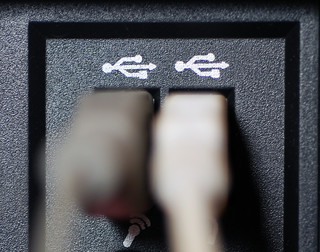
USB Cables
USB Cables (Photo credit: incurable_hippie)

Sometimes on startup, Ubuntu does not recognize my USB Keyboard & Mouse. This problem is frustrating as Windows seems to recognize them.

It took me a while to recognize the root of the problem was with the USB 3.0 ports on the Motherboard. By moving the usb connections to the USB 2.0 ports on the motherboard this problem was solved.

Problem: USB Keyboard and Mouse dont work on boot up.
Solution: Move the connectors to the devices from a standard USB 3.0 port to standard USB 2.0 port(check with your motherboard manual for specifics)

Enhanced by Zemanta
Categories
Solutions Web Windows

How to Change Proxy Setting in Internet Explorer

Internet Explorer 7 Logo
Internet Explorer 7 Logo (Photo credit: dannysullivan)

Here are the steps to change the Proxy settings in Internet Explorer:

  1. Open Internet Explorer and select Tools from the menu bar.
  2. Select Internet Options.
  3. Select the Connections Tab.
  4. Select LAN Settings.
  5. Check the two tick boxes under Proxy Server.
  6. Enter your Proxy server name and the port number in their respective edit boxes.
  7. Click on OK.
  8. Close and re-open your Internet Explorer and you should be good to go!
Enhanced by Zemanta
Categories
Chrome Solutions

How to Restore Previous Session in Chrome

Logo used from the start of the Chrome project...
Logo used from the start of the Chrome project until March 2011 (Photo credit: Wikipedia)

To restore the tabs from your last session do the following in Chrome:

  1. Click on the top-right corner menu button in Google Chrome.
  2. Go to “Recent Tabs”
  3. Here you will see a list of recent closed tabs. Along with them, near the bottom you will see number of tabs closed(eg. 4 tabs).
  4. Click on that and your last session will be restored.
Enhanced by Zemanta