Categories
Linux Open Source Solutions

Fixing Open Office Issue – User Installation could not be completed

Encountered this issue while trying to run Open Office from a newly installed Ubuntu box:

This application could not be started.
User installation could not be completed.

To fix this issue you need to basically reset the config of LibreOffice. This can be done using the following command (Warning: This deletes all your settings and config wrt LibreOffice):

rm -rf ~/.config/libreoffice

Note: This issue can also occur when the permissions of the config folder is incorrect (root instead of user), use this command to fix that issue:

chown haas -r ~/.config/libreoffice
Categories
Android Device Hardware Nexus 5 Open Source Solutions

How To Disable Keyboard Touch Vibration in Android 6 Marsh Mallow (Nexus 5x & 6p)

Google Keyboard is the default keyboard in the Android 6(Marsh Mallow). By default, its configured to enable vibration on key press. If you are someone who dislikes this feature and wants to disable it, here is a simple way of disabling it:
{adinserter 3}

  • Go to Home -> Settings -> Language & input
  • Locate “Google Keyboard” and press it to open its options.
  • Select Preferences
  • Disable the “Vibrate on keypress” option and you are good
Categories
FaceBook Open Source Web

How to stop videos from playing automatically in the Facebook News Feed?

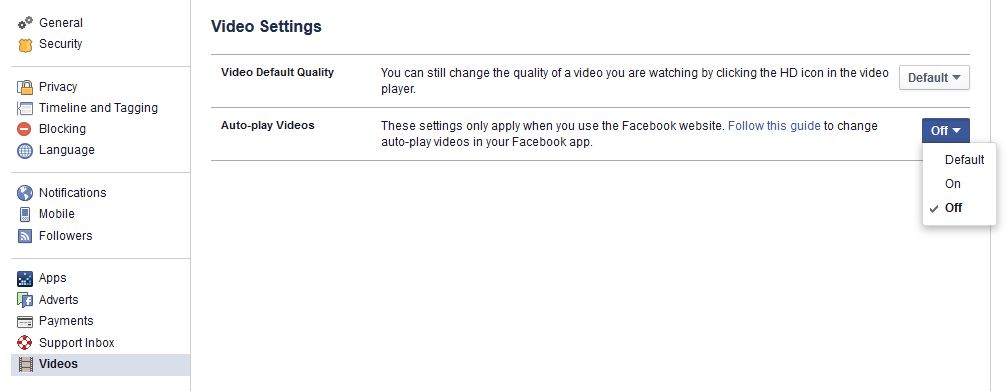
Facebook’s video auto-play settings can be turned on or off. This will help you save bandwidth and help remove the distraction of an autoplaying video. To stop videos from playing automatically do the following:
fb

  1. Go to your facebook timeline.
  2. From the top right of Facebook, click the  option and select Settings
  3. Click Videos in the left menu
  4. Click the dropdown menu next to Auto-play Videos and select Off
Categories
Android Open Source Solutions

Android: How to Set Mobile Data Limit

The official online color is: #A4C639 . 한국어: 공...
The official online color is: #A4C639 . 한국어: 공식 온라인 색은: #A4C639 . (Photo credit: Wikipedia)

If you are using Android ICS or above there is a simple way to keep track of your Mobile Data Usage.

  1. Go to Settings and select Data Usage.
  2. Drag the orange line and set it to approx 75% of your allowed Monthly data usage. When your usage crosses this limit a warning notification will be given to you.
  3. Drag the Red line and set it to approx 95% of your allowed Monthly data usage. When your usage crosses this limit your Mobile Data will automatically be disabled
  4. Set your data usage cycle based on when your bill cycle starts and ends.

Note: The Data usage of your phone may vary slightly from your carrier’s tracking(this is why we limit your usage to 95% of your quota)

Categories
Android Apps Device Open Source Solutions

Android: How to update Google Camera to the latest version

App Revenue from Google Play
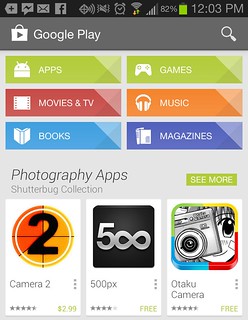
App Revenue from Google Play (Photo credit: IntelFreePress)

If you chose not to update Google Camera when the option was first presented to you, and now want to update it but dont know how, dont sweat we are here to help 🙂

Here is how to update the app on your phone:

  1. Open the Play Store App on your phone.
  2. Press the three horizontal bars on the top left corner of the app, it will open an menu for you.
  3. In this menu Choose “My Apps
  4. The next page has a list of all the apps installed on your phone, with the ones with updates available on top of the list.
  5. Scroll down to find “Google Camera“. Press on the logo to go to the app page
  6. Here you will get two options on the top right: Update & Uninstall. Press Update.
  7. Hit Continue in the App Permission Screen to start the download and install.