Categories
Open Source Web

Threaded Comments in WordPress

WordPress
Image via Wikipedia

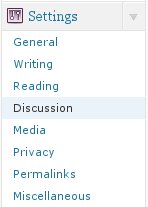
WordPress has a builtin feature of allowing threaded comments for your posts. This feature is by default disabled and has to be “enabled”… Here is how to do that:

  • Login to your WordPress install as Admin(or a user with Admin permissions).
  • Navigate to the “Settings” menu and the “Discussions” option in that menu.
  • Under “Other Comment Settings” section, you will find the option: Enable threaded (nested) comments.
  • Check the option and provide the maximum depth of a thread.

Now nested comments should be enabled on your WordPress Blog.

Enhanced by Zemanta
Categories
Web

Epic Browser – Review


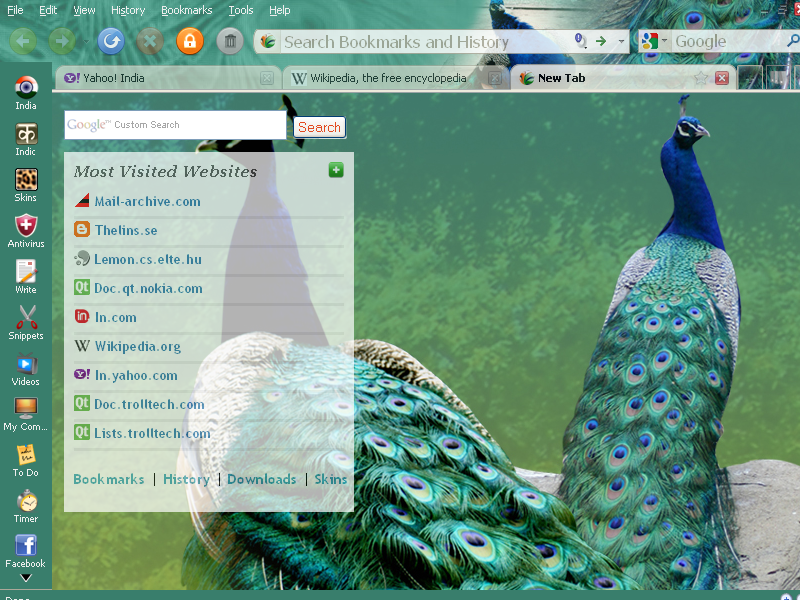
Epic Browser tagged as the new browser for India and claimed as the first browser with a built in anti-virus, was launched recently.  The browser boasts of its own collection of Apps and is clearly inclined towards the Indian users.  But what does it do that its predecessors couldnt…  Here is our take on Epic.

Categories
Solutions

Calibrating Your Monitor…

The computer color spectrum with comparative s...
Image via Wikipedia

Its important to calibrate your monitor espcially if you are a photographer and want to see the images exactly the way they will be printed. One of the simplest methods of calibrating your monitor is to use Screen Check

Points to remember:

  • Start with Maximum Contrast and adjust your screen brightness to suit the first image.
  • Then adjust your contrast to see the second image correctly.
Enhanced by Zemanta
Categories
Solutions Ubuntu

Setting Grub Options The Right Way

Grub is the default boot loader for Ubuntu and it comes with a huge set of options that you might be inclined to tweek when ever you choose to debug a problem during bootup.  The simple quickfire way to make Grub do what you want is to edit it just before the boot process occurs (Hit ‘E’ key when the options are listed), this provides for easy access but the changes are non permanent. The next time you reboot the options will have switched to the default.

To make permanent changes to Grub you need to edit the “/etc/default/grub” file and rebuild your Grub.

Categories
Solutions Ubuntu

Splitting and Joining Files in Ubuntu

Ubuntu has a neat application to split large files into smaller chunks(for emails or to burn into disks).  The application splits files into the format <filename>.<extension>.<part>.  The same application can be used to rejoin the files to recreate the original larger file.

Spliting:

To be able to split file you need the application “lxsplit”. It can be installed using the following command:

sudo apt-get install lxsplit

To split a sample file we will consider a file “archive.zip” of the size 5.5Mb and split it into 1Mb chunks:
{adinserter 2}
lxsplit -s archive.zip 1M

The program generates the following output:

Splitting archive.zip into 6 pieces.
archive.zip.001 1048576 bytes
archive.zip.002 1048576 bytes
archive.zip.003 1048576 bytes
archive.zip.004 1048576 bytes
archive.zip.005 1048576 bytes
archive.zip.006 548727 bytes
Done!

The smaller files are stored in the same directory. Split size can be specified as follows: 15M, 100m, 5000k, 30000000b

Joining the smaller files:

To join the chunks of files we again call lxsplit but this time with the -j option and pass the first file of the series as the parameter

lxsplit -j archive.zip.001

It generates the following output:

Creating merged file `archive.zip’.
Complete size: 5791607 in 6 files.
Processing file `archive.zip.001′ …
Processing file `archive.zip.002′ …
Processing file `archive.zip.003′ …
Processing file `archive.zip.004′ …
Processing file `archive.zip.005′ …
Processing file `archive.zip.006′ …
Done!

The resultant file is stored in the same directory.

Enhanced by Zemanta