Categories
Device Hardware Laptop Linux Solutions Ubuntu

Getting the Latest Ubuntu Graphics Drivers on Samsung NC20

Official Ubuntu circle with wordmark. Replace ...
Image via Wikipedia

To get the best graphics performance out of your Samsung NC20, you will need to install the latest graphics drivers.  These drivers unfortunatey are not easy to find on the web, so here is a step-by-step installation instructions for driver installation on Ubuntu 10.10.  Special thanks to the wonderful folks at Ubuntu Forums(Wonderful source, thumbs up to the contributors).
{adinserter 2}
The steps explained below were taken from post #542 from this Ubuntu Forums page.

  1. Download this zip file via_chrome9_drv_u1010_v2.zip and unzip it
  2. Open a terminal window and change into that directory (“cd ~” for home dir)
  3. Install the “dkms” package from Ubuntu package repository
    $ sudo apt-get install dkms
  4. Install the kernel driver:
    $ sudo dpkg -i chrome9-drm_87a.55689-maverick1_all.deb
  5. Install the X.org driver:
    $ sudo dpkg -i --force-confmiss --force-confnew xserver-xorg-video-chrome9_87a.55729-maverick1_i386.deb
  6. Update /etc/X11/xorg.conf file
  7. Copy the provided xorg.conf.nc20 file to xorg.conf
    $ sudo mv /etc/X11/xorg.conf /etc/X11/xorg.conf.backup
    $ sudo cp /etc/X11/xorg.conf.nc20 /etc/X11/xorg.conf
  8. Reboot Ubuntu
  9. Check if it’s working: Open /var/log/Xorg.0.log in a text editor. If you see several lines containing “VIA(0)”, then the new driver is being used.

Also note:

  • The sample xorg.conf.nc20 is only installed if you add the “–force-confmiss –force-confnew” options to dpkg.
  • Although VIA marks the source code this hacked driver is based on as stable, I cannot guarantee it to be bug-free. Use with caution.
Enhanced by Zemanta
Categories
Media Open Source

Adding WaterMarks to Videos in KdenLive


A range of video effects in Kdenlive
Image via Wikipedia

Kdenlive is a wonderful opensource program for video editing that I have off late become a huge fan of. The software is little tough to initially understand but once you get used to it, its very easy to make pleasing videos on it.


One of the recent problems I faced in Kdenlive was to add a watermark to a video I had created. One of the ways to create a watermark on a kdenlive project is as follows:

  1. Create the base project and save your project
  2. Now create a new project with same project settings – fps, resolution etc.
  3. Select «Add Clip» and select the first project you created
  4. Now create a title slide with the information that you will use to watermark.
  5. Now using the Composite transition place the title slide over the first project. You can use the opacity control to control the transperacy of your water mark
  6. Render you video.
Enhanced by Zemanta


Categories
Linux

Determine Mounted Filesystem Types on Linux


In linux its very easy to lose track of filesytem types if you have been using it for a while. With the advent of ext4(and NTFS) systems its hard to guess which filesystem type is running on each partition.

One of the easiest ways to determine the filesystem type of a mounted filesystem is to use the mount command. The output of the command is of the type:

haas@techhacks:~$ mount
/dev/sdb8 on / type ext4 (rw,errors=remount-ro,commit=0)
proc on /proc type proc (rw,noexec,nosuid,nodev)
none on /sys type sysfs (rw,noexec,nosuid,nodev)
fusectl on /sys/fs/fuse/connections type fusectl (rw)
none on /sys/kernel/debug type debugfs (rw)
none on /sys/kernel/security type securityfs (rw)
none on /dev type devtmpfs (rw,mode=0755)
none on /dev/pts type devpts (rw,noexec,nosuid,gid=5,mode=0620)
none on /dev/shm type tmpfs (rw,nosuid,nodev)
none on /var/run type tmpfs (rw,nosuid,mode=0755)
none on /var/lock type tmpfs (rw,noexec,nosuid,nodev)
/dev/sdb6 on /media/Windows type fuseblk (rw,nosuid,nodev,allow_other,blksize=4096,default_permissions)
/dev/sdb9 on /home type ext4 (rw,commit=0)
binfmt_misc on /proc/sys/fs/binfmt_misc type binfmt_misc (rw,noexec,nosuid,nodev)
/dev/sda1 on /media/ext type ext4 (rw,nosuid,nodev,uhelper=hal)


As you can see, second last column displays the file system type. For example first line [/dev/sdb8 on / type ext4 (rw,errors=remount-ro,commit=0)] can be read as follows:

  • /dev/sdb8 : Partition
  • / : File system
  • ext4 : File system type
  • (rw,errors=remount-ro,commit=0) : Mount options
Enhanced by Zemanta


Categories
Web

Download Online Videos using ClipGrab

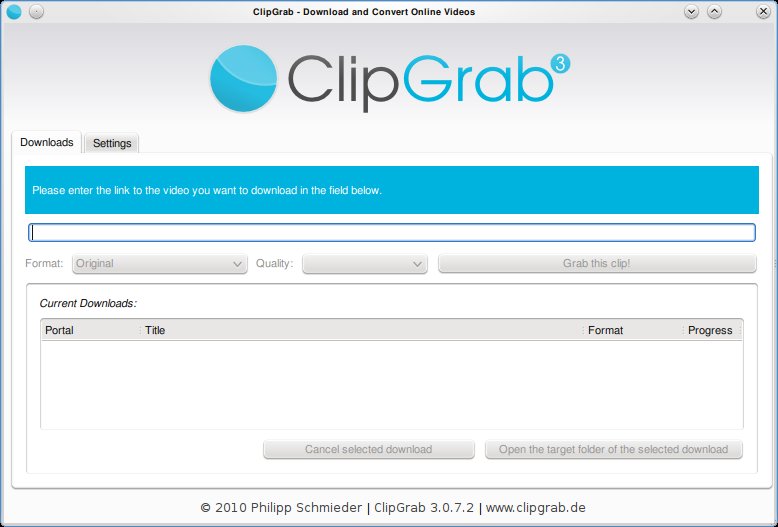
Clipgrab is an program that downloads videos from popular online video sites like youtube, vimeo ect and saves the video in the format of your choice. The application is very straight forward to use and provides a good set of options that make it easy for the user to customize their download.

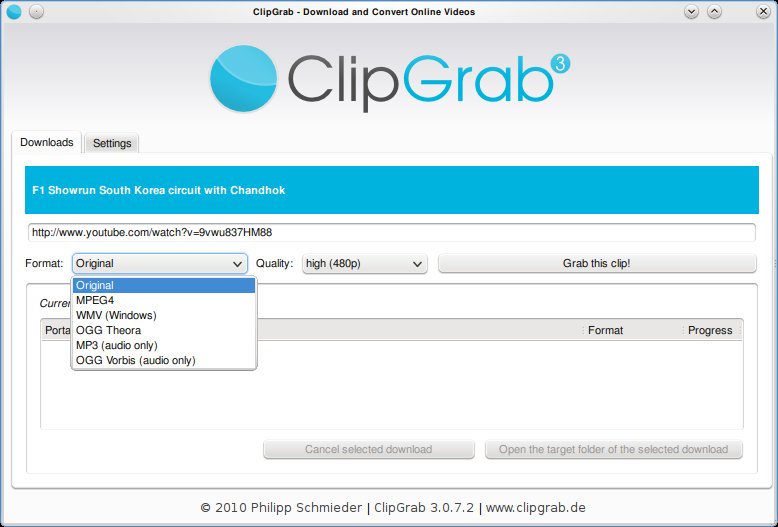
Clipgrab requires the user to simply type in the url of the video. This can be copied from the web browser. Once done, Clipgrab gives the details of the video including the different sizes its available for download and the different formats it can be converted to. Hit the “Grab this Clip!” option to download the video.


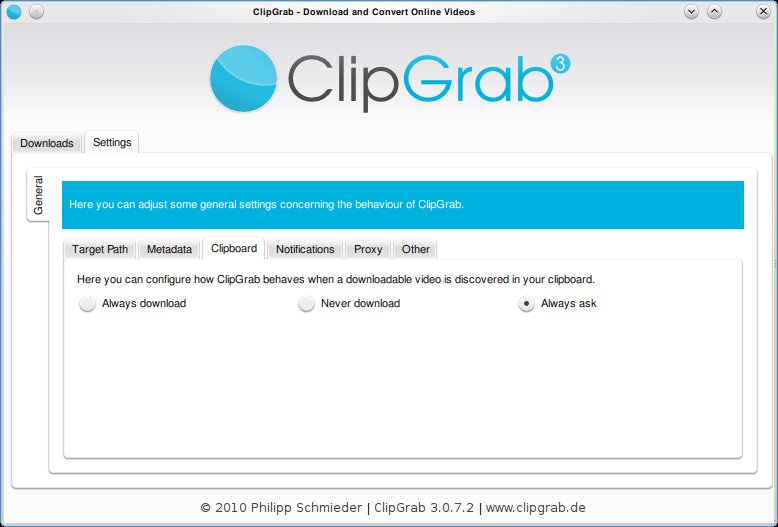
Clipgrab also monitors your clipboard to pick up urls when ever they are copied. Then it throws a notification asking you if you want to download the clip.

Clipgrab is available for Linux, Windows and Mac and can be downloaded from here: http://clipgrab.de/start_en.html

For ubuntu systems you can use the PPA repository to download Clipgrab:

sudo add-apt-repository ppa:clipgrab-team/ppa

sudo apt-get update

sudo apt-get install clipgrab

Enhanced by Zemanta


Categories
Linux Ubuntu

Use htop For Better Memory Usage Details on Linux


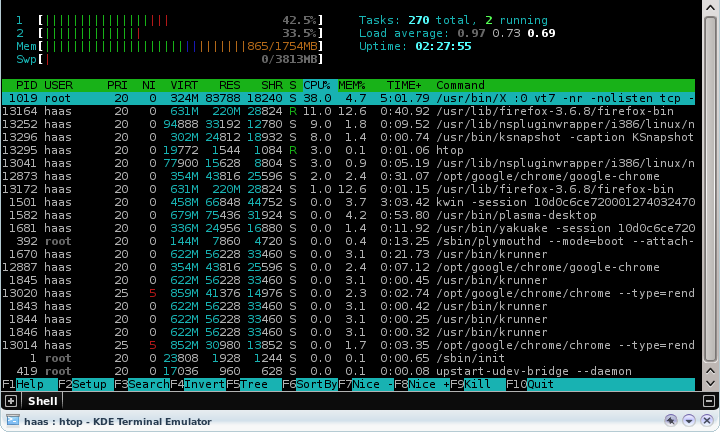
htop is a simple and wonderful tool to view the current memory usage on a Linux box. The tool is upgraded version of the top command, providing users some interactive menus and even mouse based control of sorting and menu access.

To install htop on your ubuntu system, execute the following command in a console:
sudo apt-get install htop
Run htop via a console.

Enhanced by Zemanta