Categories
Web

Download Online Videos using ClipGrab

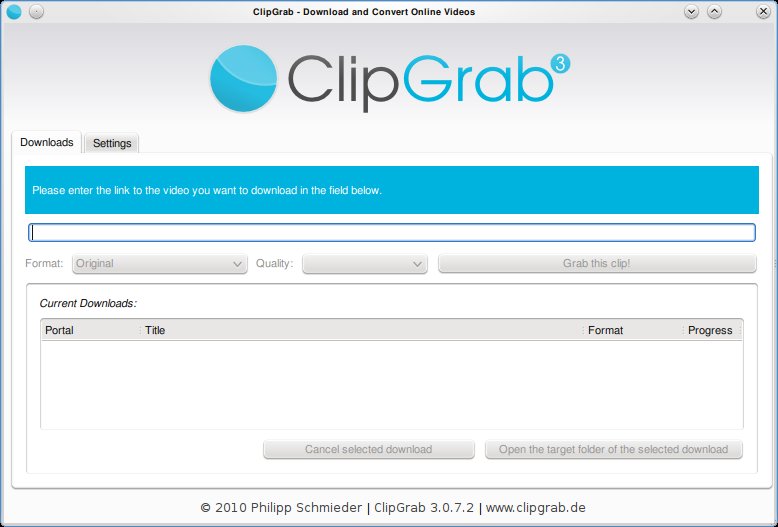
Clipgrab is an program that downloads videos from popular online video sites like youtube, vimeo ect and saves the video in the format of your choice. The application is very straight forward to use and provides a good set of options that make it easy for the user to customize their download.

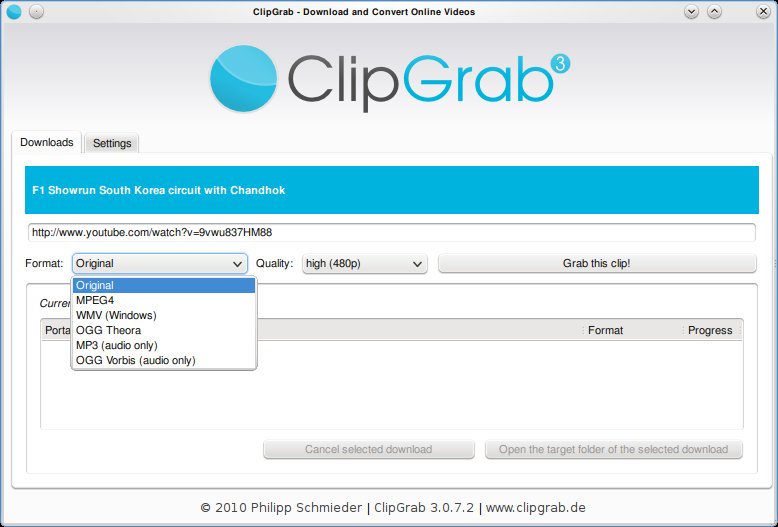
Clipgrab requires the user to simply type in the url of the video. This can be copied from the web browser. Once done, Clipgrab gives the details of the video including the different sizes its available for download and the different formats it can be converted to. Hit the “Grab this Clip!” option to download the video.

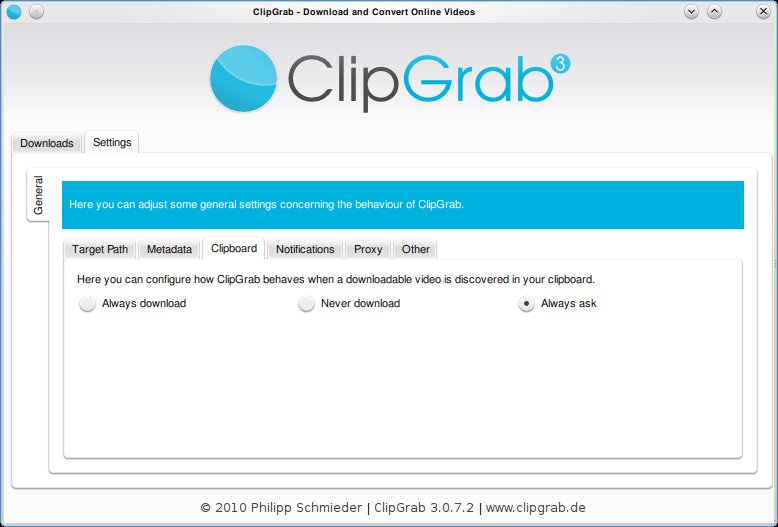
Clipgrab also monitors your clipboard to pick up urls when ever they are copied. Then it throws a notification asking you if you want to download the clip.
Clipgrab is available for Linux, Windows and Mac and can be downloaded from here: http://clipgrab.de/start_en.html

For ubuntu systems you can use the PPA repository to download Clipgrab:

sudo add-apt-repository ppa:clipgrab-team/ppa

sudo apt-get update

sudo apt-get install clipgrab

Enhanced by Zemanta


Categories
Linux Ubuntu

Use htop For Better Memory Usage Details on Linux


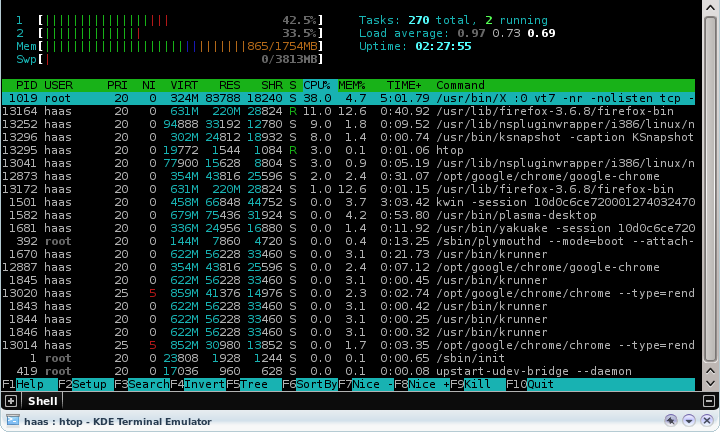
htop is a simple and wonderful tool to view the current memory usage on a Linux box. The tool is upgraded version of the top command, providing users some interactive menus and even mouse based control of sorting and menu access.

To install htop on your ubuntu system, execute the following command in a console:
sudo apt-get install htop
Run htop via a console.

Enhanced by Zemanta
Categories
Solutions Ubuntu

Setting Grub Options The Right Way

Grub is the default boot loader for Ubuntu and it comes with a huge set of options that you might be inclined to tweek when ever you choose to debug a problem during bootup.  The simple quickfire way to make Grub do what you want is to edit it just before the boot process occurs (Hit ‘E’ key when the options are listed), this provides for easy access but the changes are non permanent. The next time you reboot the options will have switched to the default.

To make permanent changes to Grub you need to edit the “/etc/default/grub” file and rebuild your Grub.

Categories
Solutions Ubuntu

Splitting and Joining Files in Ubuntu

Ubuntu has a neat application to split large files into smaller chunks(for emails or to burn into disks).  The application splits files into the format <filename>.<extension>.<part>.  The same application can be used to rejoin the files to recreate the original larger file.

Spliting:

To be able to split file you need the application “lxsplit”. It can be installed using the following command:

sudo apt-get install lxsplit

To split a sample file we will consider a file “archive.zip” of the size 5.5Mb and split it into 1Mb chunks:
{adinserter 2}
lxsplit -s archive.zip 1M

The program generates the following output:

Splitting archive.zip into 6 pieces.
archive.zip.001 1048576 bytes
archive.zip.002 1048576 bytes
archive.zip.003 1048576 bytes
archive.zip.004 1048576 bytes
archive.zip.005 1048576 bytes
archive.zip.006 548727 bytes
Done!

The smaller files are stored in the same directory. Split size can be specified as follows: 15M, 100m, 5000k, 30000000b

Joining the smaller files:

To join the chunks of files we again call lxsplit but this time with the -j option and pass the first file of the series as the parameter

lxsplit -j archive.zip.001

It generates the following output:

Creating merged file `archive.zip’.
Complete size: 5791607 in 6 files.
Processing file `archive.zip.001′ …
Processing file `archive.zip.002′ …
Processing file `archive.zip.003′ …
Processing file `archive.zip.004′ …
Processing file `archive.zip.005′ …
Processing file `archive.zip.006′ …
Done!

The resultant file is stored in the same directory.

Enhanced by Zemanta
Categories
Linux Solutions Ubuntu Web

Transfer files Effortlessly between Ubuntu Systems using Kepas

Kepas is a KDE4 file transfer tool. It discovers your local LAN for buddies (KDNSSD) and lets you transfer files or Klipper(KDE Clipboard) entries from a tray icon or using drag and drop with the Kepas plasmoid.

Kepas has only one requirement, that it must be installed in all the systems that are expected to be part of the network sharing group.