Categories
Linux Solutions Ubuntu

Installing Adobe Air on Linux

Logo of Adobe Systems Incorporated
Image via Wikipedia

To install Adobe Air on you Linux box, follow the steps below depending on your distribution:

Ubuntu

Open the console and type the following command:
sudo apt-get install adobeair
(if the package is not detected then you will need to activate Ubuntu partner repositories)

Alternatively you can go to http://get.adobe.com/air/ and choose to download the deb package of Adobe Air.
Run the downloaded file to install Adobe Air

Other Distributions

Go to http://get.adobe.com/air/ and choose to download the package of Adobe Air depending on what your distribution supports.
If you are not sure download the bin package.

Once the file is downloaded, give it executable permission and run it:

sudo chmod a+x AdobeAirInstaller.bin
sudo ./AdobeAirInstaller.bin

Adobe Air should now be installed on your system

Enhanced by Zemanta
Categories
Linux Solutions

Changing The Frequency Of StartUp Disk Checks On Linux

Opened hard drive with top magnet removed, sho...
Image via Wikipedia

Linux systems commonly run on ext2/ext3/ext4 file systems. These file-systems have a built-in feature to tell the operating system to do a disk check while booting up if the number of times the disk has been mounted exceeds a certain number. Most commonly the count is set to 30.

This is an inconvenience to anyone who regularly switches off the system, its even worse if the hard disk sizes reach 1Tb. So changing the number to suit your preference might be an excellent idea.


Changing the maximum mount count:

sudo tune2fs -c 50 /dev/sda1

Here:
tune2fs is the command that allows modification on the disk flags
-c enables the max mount count to be changed to the next parameter(50 in this case)
/dev/sda1 is the partition on which to do the operation

Changing the maximum time count:

sudo tune2fs -i 30d /dev/sda1

Here:
tune2fs is the command that allows modification on the disk flags
-i enables the max time count to be changed to the next parameter(30d in this case means the consecutive checks are scheduled 30 days apart). This parameter can be also give in terms of months(2m for 2 months) and weeks(3w for 3 weeks)
/dev/sda1 is the partition on which to do the operation

Enhanced by Zemanta


Categories
Linux Open Source Ubuntu Web

Setting Up Simple Dropbox Integration with Ubuntu

Image representing Dropbox as depicted in Crun...
Image via CrunchBase

The default installer of Dropbox for Ubuntu works with the Nautilus file manager. But this integration is not always desireable, below is a method to install Dropbox on your Ubuntu box without installing Nautilus.

Categories
Linux

Search for Multiple Strings in Linux Command Line

Problem:  I have a text file with a lot of information, I need to pick lines of information containing a particular pattern(s) and store it in another file

Solution: Use egrep to filter out lines with required pattens and write the result in a file.

egrep is actually a short form for “grep -E”, a command used to handle pattens while searching.

For Eg.
Lets say you have a text file with a list of file names and you want to filter out only those names that are of a certian type. For the sake of this example lets assume you want to only see filenames of files ending with .mp3 or .wav or .ogg

The command you need to use is:

cat file | egrep “.mp3|.wav|.ogg” > musiclist.txt

Voila you now have a file that sorts out your music files.

Bonus: If you want to list out all the music files you have stored under a particular directory you can use the following command

ls -1R /path/to/music | egrep “.mp3|.wav|.ogg” > musiclist.txt

Reblog this post [with Zemanta]
Categories
Open Source Web

JDownloader – Download Files From File Sharing Sites At Will…

JDownloader (How to)
Image by .::E1ement2048::. via Flickr

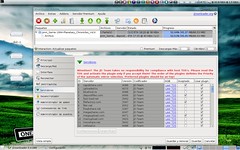
JDownloader is a free java-based program that completely automates the process of downloading files from popular file sharing sites like Rapidshare, Megaupload ect…

The problem with most file sharing sites is that the free accounts have a limit on the amount to data you can download and additionally it requires you to wait for a certain period of time before downloading the files. JDownloader is a beautiful application that automates the process making it possible for you to schedule downloads and even queue files to be downloaded.

JDownloader works on Windows/Mac/Linux and is simple to get started with.
So if you like to download a lot of files from file sharing sites then give JDownloader a try…

Reblog this post [with Zemanta]