Android gives vibration feedback on some touch events like press of back button. This can be useful and also be a pain. Here is how to disable this feature:
- Go to Home -> Settings -> Sound
- Uncheck the option “Haptic feedback” or “Vibrate Feedback”

Android gives vibration feedback on some touch events like press of back button. This can be useful and also be a pain. Here is how to disable this feature:
UPDATE: For Android 6 (Marsh Mallow) use these steps

{adinserter 3}

Note: The solutions explained below can damage or brick your phone. Please exercise caution when implementing them. The author has tried most of these solutions but under expert supervision. If you are not sure about the solution please contact your Google Support
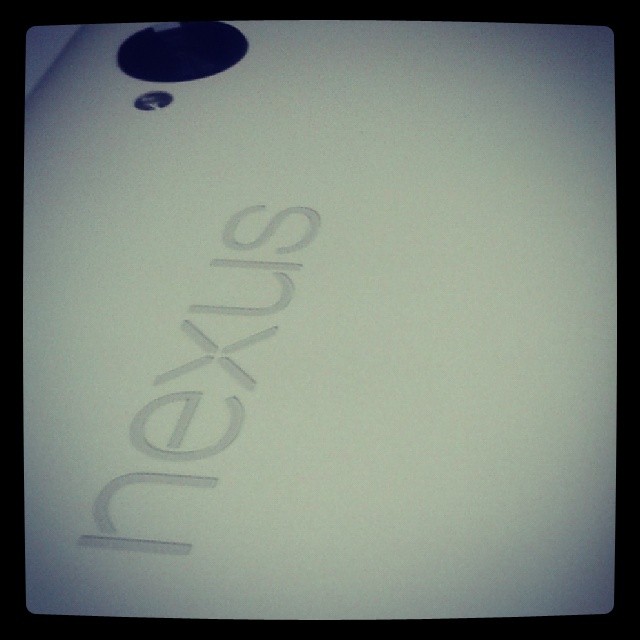
There seems to be a common problem in some Nexus 5 phones wherein the phone switches off and just refuses to start up. This happened to a colleague of mine too and here are my observations and possible solutions to the problem:

SeaTools is a diagnostic tool to check your hard disk for errors and failure. Its an extremely useful tool to have around as hard disks fail all the time and recognizing a failing hard disk can save you a lot of trouble in the long run.
You can get a copy of the bootable iso from here: http://www.seagate.com/support/downloads/item/seatools-dos-master/
{adinserter 3}
So here is a guide to create a bootable SeaTools USB drive for Ubuntu:
$ sudo apt-get install syslinux$ sudo dd if=/usr/lib/syslinux/mbr.bin of=/dev/sdb$ sudo syslinux /dev/sdb1$ sudo mount /dev/sdb1 /mnt$ cp /usr/lib/syslinux/memdisk /media/SEATOOLS
Thats it you’re done 🙂 Try booting with it. Here’s what my usb stick looks like at the end of all of this:
$ ls -l

total 3136

-r--r--r-- 1 username username 32768 2013-12-22 17:44 ldlinux.sys

-rw-r--r-- 1 username username 25244 2013-12-22 17:51 memdisk

-rw-r--r-- 1 username username 3137536 2013-12-22 13:22 SeaToolsDOS223ALL.ISO

-rw-r--r-- 1 username username 97 2013-12-22 17:54 syslinux.cfg
