Categories
Ubuntu

Antivirus in Linux…

Off late I have been looking at Antivirus solutions in linux.  Logically it seems like a great idea to me.  Most of the really bad viruses attack the antivirus system directly and cause major damage to the system, having your AV in a opertating system that is much more secure gives you a better guarantee that you can rescue your system.

There are many antivirus solutions for Linux.  I have personally tried ClamAV and Avast.

ClamAV is a command line tool that makes protecting linux systems a simple affair.  The system was orginally made to scan email attachments and does a great job running in the background.  ClamAV is the prefect soulution for someone who wants to install the AV and let it take care of itself.

To Install ClamAv use the following command in Ubuntu

sudo apt-get install clamav

You can a scan of any folder using the following command

clamscan -r -i -l avscan.txt –move=avscan/. /media/disk

The above command scans the folder “/media/drive” recursively and if an infection is found the original location is stored as an enty in the “avscan.txt” file and the infected file is moved to the folder “avscan”.

Avast Antivirus is the more like the traditional Windows Antivirus.  It has a simple UI for updates and scanning of folders and files.  The learning curve is minimal and the antivius is updated very regularly too.

You can download and install Avast from the following location:

http://www.avast.com/eng/avast-for-linux-workstation.html

Reblog this post [with Zemanta]
Categories
Media Solutions Ubuntu

Joining Videos using Mencoder

Mencoder is an extremely powerful video converter that is capable of converting video from almost any format to any other format.  One of the simplest exercises to do with Mencoder involves joining two videos to make a single video.

To join the videos all you need are the videos and Mencoder installed on your system.  You can install Mencoder on your Ubuntu box using the command

sudo apt-get install mencoder

Now lets say you plan to join videos a.mpg and b.mpg to a video c.mpg

Go to the command line (to the folder containing the videos) and execute the command –

mencoder a.mpg b.mpg -ovc copy -oac copy -o c.mpg

Thats it!  You can join more videos with a single shot but remember that the order in which you have listed the videos the final video will be created in the same order.

Reblog this post [with Zemanta]
Categories
Laptop Ubuntu

Test Drive The All New Ubuntu/Kubuntu Netbook OS


Wubi
Image via Wikipedia

The latest version of (k)Ubuntu comes with a Netbook OS to suit the small screen and moderate horsepower netbook segment of notebooks. The version is light weight and makes good use of the features common between netbooks to get the best out of your netbook.

The official websites recommend you download the iso and create a bootable flash drive using the iso. The step by step method to do it is given in the following links:
Ubuntu – Netbook Remix
KubuntuNetbook Technical Preview


If you are like me and dont want to go thru the process of installing Karmic Koala again, you are in luck… You can test the new Netbook Remix directly from the default desktop install of Ubuntu/Kubuntu.

If you are using Ubuntu you just have to install the “ubuntu-netbook-remix” package. That can be done with the following command:
sudo apt-get install ubuntu-netbook-remix

If you are using Kubuntu you just have to install the “kubuntu-netbook” package. That can be done with the following command:
sudo apt-get install kubuntu-netbook

When you reboot and login you will automatically be taken to the netbook remix of your OS.

PS: The version is one of the earliest releases, so expect updates and more improved performance in the near future.

Reblog this post [with Zemanta]


Categories
Web

µTorrent in Windows 7 & Other Links

Fix For uTorrent In Windows 7There are reports in various forums that uTorrent exceeds memory limit and shoots up to 100% in other cases some downloads will stop at 99.9%. In few cases uTorrent shows false reports and works oddly. – Here is how to fix those nagging problems.

The Master List of New Windows 7 Shortcuts – Lifehacker’s list of useful Windows 7 shortcuts.

How to Bring Back the Old Facebook Feed – Irritated with the new facebook feed separation? Here is how to get back to the old ways.

Reblog this post [with Zemanta]

Categories
Media Open Source Solutions

Mplayer without Text

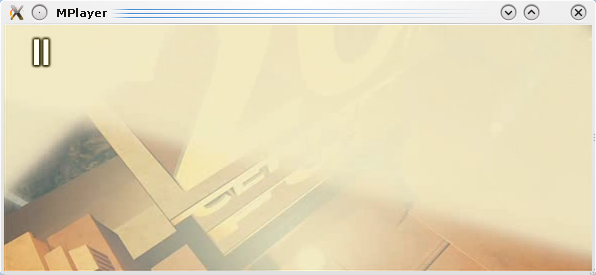
I upgraded my desktop to Kubuntu Karmic 9.10 yesterday and realized an unique problem. There was no text displayed in the OSD(On Screen Display).

Mplayer without Text

If you open the file in command prompt mode you will see the following message:

subtitle font: load_sub_face failed.

The reason for was basically that Mplayer could not find the required font file to display the text. To solve the problem you need to open the .mplayer directory in your home directory. And do one of the two following things:

  1. Copy any font file of your choice to that directory and rename it subfont.ttf (You will find fonts at /usr/share/fonts)
  2. Open the config file in the .mplayer directory and add the following lines:
    font=/usr/share/fonts/truetype/msttcorefonts/Times_New_Roman.ttf
    subfont-text-scale=2.5

Ps: You can replace the link to your favourite font after the font= command.  Also using Method 2 will let you even set the size of the font

Reblog this post [with Zemanta]