Categories
Linux Solutions Ubuntu

Clean up unnecessary files using KleanSweep

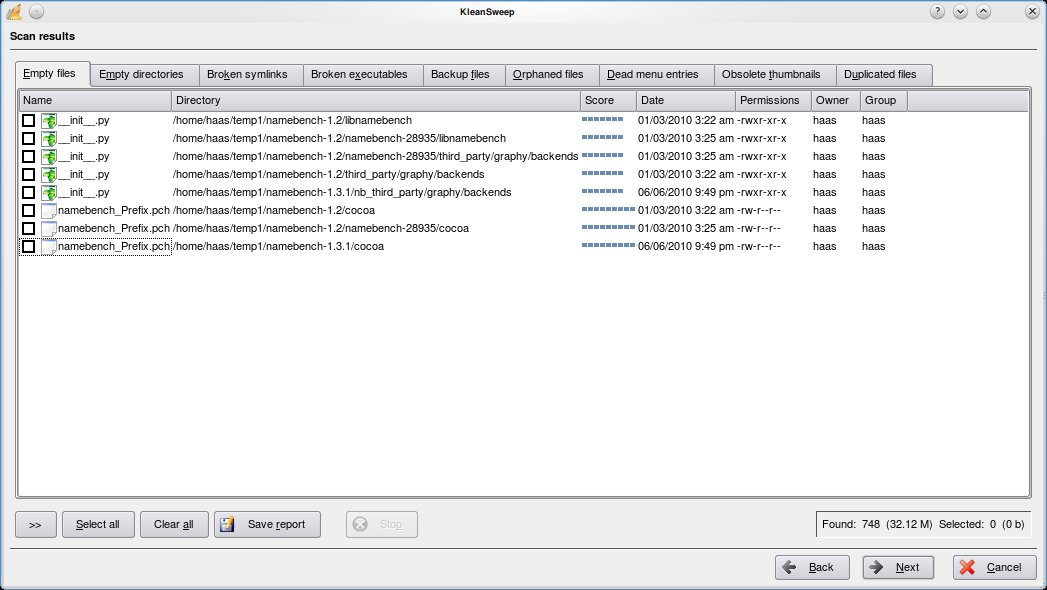
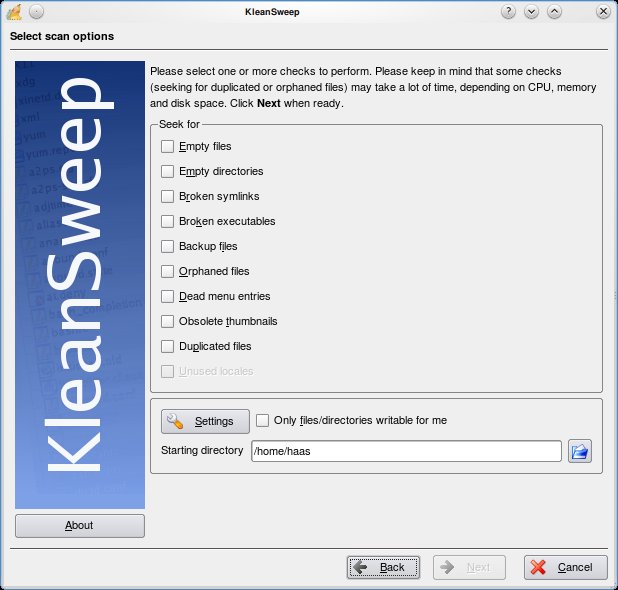
KleanSweep is a wonderful application to help you clean up the unnecessary files from your computer. KleanSweep searches and finds Empty files and directories, Broken Symlinks, Backup files, Orphaned Files, Dead menu entries, Obsolete thumbnails and Duplicated files.

Using KleanSweep is as straight forward as choosing what you are searching for and selecting the directory to search. The files that match your criteria are searched and listed for you to remove from your system.

Other similar project include FDupes and FSlint for Linux & Duplicate File Finder (DupFiles) for Windows

Categories
Linux Solutions

Deleting those Pesky Hard to Delete files…

Sometimes we find a file in our filesystem with a weird non realistic name, which was probably created by mistake. There can be hundreds of reasons why this file got created but due to its unique uncharacteristic name its almost impossible to delete the file in the usual way(right click delete or rm on command line)

Eg,. a file with the name “??@@???@8” got created on my home drive and I cannot delete, move or rename the file.

To delete such a file we need to delete it using its inode number as the reference. You can get the inode number of the file by executing the following command in the directory containing the file

ls -il

Output:
1130895 -rw-r--r-- 1 tech tech 0 2010-07-02 15:49 ??@@???@8
1131122 drwxr-xr-x 4 tech tech 4096 2010-03-12 22:54 Bills
286834 drwxr-xr-x 5 tech tech 4096 2010-05-06 12:26 Blog
1131109 drwxr-xr-x 2 tech tech 4096 2010-05-06 12:24 Books
1139338 drwxr-xr-x 3 tech tech 4096 2010-05-06 12:26 Friends
1156511 drwxr-xr-x 3 tech tech 4096 2010-07-31 11:02 Photos

As you can see the console does not recognize the name of the file correctly, this is exactly the reason why it was failing to delete the file. The first number in the line is the inode number. To delete the file we will use the following command:
find . -inum <inode-number> -exec rm -i {} \;

Output:
tech@chandrahasa.com:~/Documents$ find . -inum 1130895 -exec rm -i {} \;
rm: remove regular empty file `./\001\223@@\360\006\v@8'? y
tech@chandrahasa.com:~/Documents$

Enhanced by Zemanta
Categories
Solutions

Calibrating Your Monitor…

The computer color spectrum with comparative s...
Image via Wikipedia

Its important to calibrate your monitor espcially if you are a photographer and want to see the images exactly the way they will be printed. One of the simplest methods of calibrating your monitor is to use Screen Check

Points to remember:

  • Start with Maximum Contrast and adjust your screen brightness to suit the first image.
  • Then adjust your contrast to see the second image correctly.
Enhanced by Zemanta
Categories
Solutions Ubuntu

Setting Grub Options The Right Way

Grub is the default boot loader for Ubuntu and it comes with a huge set of options that you might be inclined to tweek when ever you choose to debug a problem during bootup.  The simple quickfire way to make Grub do what you want is to edit it just before the boot process occurs (Hit ‘E’ key when the options are listed), this provides for easy access but the changes are non permanent. The next time you reboot the options will have switched to the default.

To make permanent changes to Grub you need to edit the “/etc/default/grub” file and rebuild your Grub.

Categories
Solutions Ubuntu

Splitting and Joining Files in Ubuntu

Ubuntu has a neat application to split large files into smaller chunks(for emails or to burn into disks).  The application splits files into the format <filename>.<extension>.<part>.  The same application can be used to rejoin the files to recreate the original larger file.

Spliting:

To be able to split file you need the application “lxsplit”. It can be installed using the following command:

sudo apt-get install lxsplit

To split a sample file we will consider a file “archive.zip” of the size 5.5Mb and split it into 1Mb chunks:
{adinserter 2}
lxsplit -s archive.zip 1M

The program generates the following output:

Splitting archive.zip into 6 pieces.
archive.zip.001 1048576 bytes
archive.zip.002 1048576 bytes
archive.zip.003 1048576 bytes
archive.zip.004 1048576 bytes
archive.zip.005 1048576 bytes
archive.zip.006 548727 bytes
Done!

The smaller files are stored in the same directory. Split size can be specified as follows: 15M, 100m, 5000k, 30000000b

Joining the smaller files:

To join the chunks of files we again call lxsplit but this time with the -j option and pass the first file of the series as the parameter

lxsplit -j archive.zip.001

It generates the following output:

Creating merged file `archive.zip’.
Complete size: 5791607 in 6 files.
Processing file `archive.zip.001′ …
Processing file `archive.zip.002′ …
Processing file `archive.zip.003′ …
Processing file `archive.zip.004′ …
Processing file `archive.zip.005′ …
Processing file `archive.zip.006′ …
Done!

The resultant file is stored in the same directory.
Enhanced by Zemanta