Categories
Android Apps Solutions

Problem Loading Widget – Solved Android Error

Problem loading Widget Error – Sometimes Widgets on the Android home page fail to load and are replaced by “Problem Loading Widget” error. The main causes of this error include:

  • Removal of the Application that gave you that widget
  • Moving of the specific (Widget) Application from Internal Memory to SD card
  • Upgrading of the Application
  • Upgrading of the core operating system (leading to reinstall of the Application)
  • Change of SD card

There is no simple way to fix this error, as it can depend on what caused the error in the first place and how the Widget was originally designed.  Here are some quick steps you can follow to recover your widget:

Categories
Android Apps Solutions

How to disable/customize audio notificaitons for email in Android

Image representing Gmail as depicted in CrunchBase
Image via CrunchBase

I receive a lot of emails and while I like to be on top of my inbox most of the time, I occasionally don’t want an audio notification for every mail I receive. So here is a simple step by step process of disabling/customizing audio notification for the Gmail app in Android.

  • Click on your Gmail icon.
  • Go to “Menu” > “More” > “Settings”
  • Select the email address you’d like to change the setting for (eg yourname@gmail.com)
  • Scroll down and Select “Lables to Notify”
  • Hit the dropdown arrow next to “Inbox”
  • Select “Ringtone” and then select “Silent”(for disabling audio notifications) or your desired ringtone
Categories
Apps Solutions Web

In Line Dictionary for Firefox

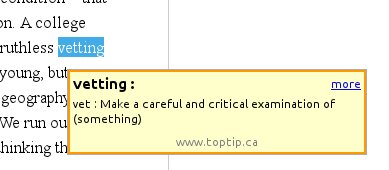
Google Dictionary and Google Translate Extension for Firefox provides a simple solution for in-line translation/dictionary look-up of words & translation of whole pages.

Once installed all you need to do is double-click or highlight a word, and a little pop-up will show the definition of it in your language.


Click on the link below to install the plugin:
Google Dictionary and Google Translate 2.5


Categories
Android Apps

Using Phone LED As FlashLight: Android

One of the most attractive features of my Galaxy Ace is its LED Flash. This bright light can be used as a torch when needed, unfortunately there is no default app available to make it work.

Whats worse? I could only discover a single app that made this operation possible.  The app goes by the name “Tiny Flashlight + LED” and is available in the Android Market.

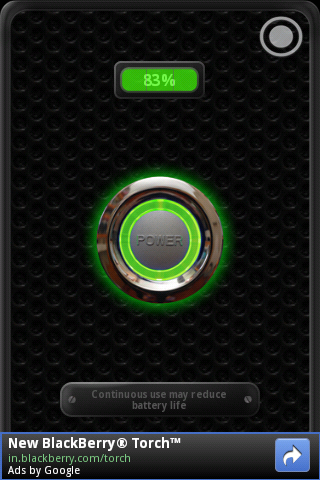
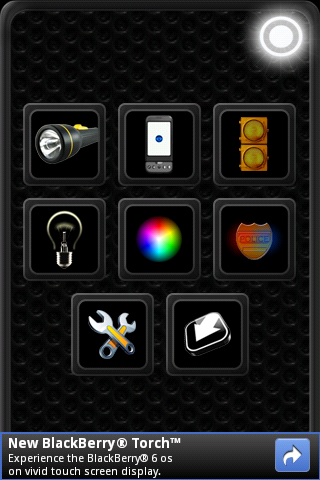
The app also provides a handy widget that allows you to turn on the torch right from the home screen
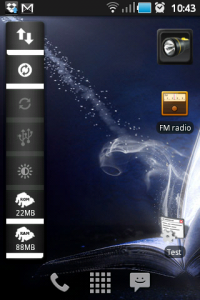
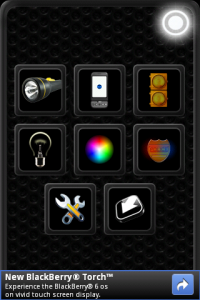
The creators of the app say that it works with these phones:
Samsung Epic 4G Galaxy S II S2 SII GS2 GSII Tab 7.0 8.9 10.1 Ace Cooper Fascinate Moment Acclaim Transform Mesmerize Charge Behold 7500 Moment, LG G-Slate Ally Apex GW620 KH5200 EVE Shine Plus Optimus 2x G2x Speed, Motorola XOOM Atrix 4G Droid Bionic X 2 i1 Pro R2D2 Backflip Cliq XT Milestone Defy, Nexus, N1, Sony Ericsson XPERIA X10 X3 Neo Pro Play Arc, HTC Incredible G2 Desire HD HD2 EVO Shift 3D myTouch Slide Wildfire Legend Thunderbolt Inspire Sensation Merge, Bright Flashlight, Dell Streak 2.1, Sharp IS01 JN-DK01 SH-10B Lynx IS03 SBM003SH SBM005SH, Pantech Vega SKY X, Sanyo Zio, Toshiba Regza T-01C, bright flashlight, bright led, Garmin Asus A10, Huawei Ideos X5 U8800, Archos Coby Kyros 7015 LED, Acer Iconia A500.

Download:
[qr]https://market.android.com/details?id=com.devuni.flashlight&feature=search_result[/qr]


Categories
Android Apps

How to Fix the “Could Not Install On USB Storage Or SD Card” Error – Android

Android Market
Image via Wikipedia

The “Could Not Install On USB Storage Or SD Card” error on Android phones apparently occurs when something goes wrong with the installation of an app and temp file is left on your Android OS. There is a work around and a fix for this problem.

The Work Around:

  • Unmount your SD card
  • Install the app
  • Mount your SD card
  • Move the app to the SD card
{adinserter 3}

The Fix:
Note: I suggest you backup your sd card before you try this method. It worked perfectly on my Galaxy Ace but there is no guarantee that it might not cause any data loss.

  • Connect your phone to your PC as a mass storage device
  • Backup important data
  • Find the folder named “.android_secure”
  • Inside it, delete the file called “smdl2tmp1.asec”
  • Disconnect your phone
  • Install the App you were trying to install

Hope this helps you 🙂